Cthulhu: The Cosmic Abyss is an investigative horror adventure where understanding your tools is just as important as exploring the environment. From underwater movement to sonar frequencies and the Vault investigation system, there are several controls worth learning before diving deeper into the mystery.
This guide covers the PlayStation controls shown in the game's configuration menu, alongside the corresponding Xbox buttons. It also explains how to use the sonar, manage evidence, examine objects, and navigate the investigation interfaces.
Cthulhu: The Cosmic Abyss Controls for PS5 and Xbox
The following table combines the main gameplay controls. These bindings come from the PlayStation control layout, with Xbox equivalents provided for players using an Xbox controller.
| Action | PlayStation | Xbox |
|---|---|---|
| Move | Left Stick | Left Stick |
| Look | Right Stick | Right Stick |
| Jump | Cross | A |
| Crouch | Circle | B |
| Swim Up | Cross | A |
| Swim Down | Circle | B |
| Sprint / Boost | L3 | Left Stick Click |
| Interact | L1 | LB |
| Interact (Alternative) | R1 | RB |
| Activate Sonar | R2 | RT |
| Cycle Sonar Frequencies | L1 | LB |
| Toggle Sonar Frequencies | L3 | Left Stick Click |
| Open Sonar Configuration | L2 | LT |
| Track | Triangle | Y |
| Untrack All | Triangle | Y |
| Refill Energy | D Pad | D Pad |
| Flashlight | R3 | Right Stick Click |
| Open / Close Vault | Touch Pad | View Button |
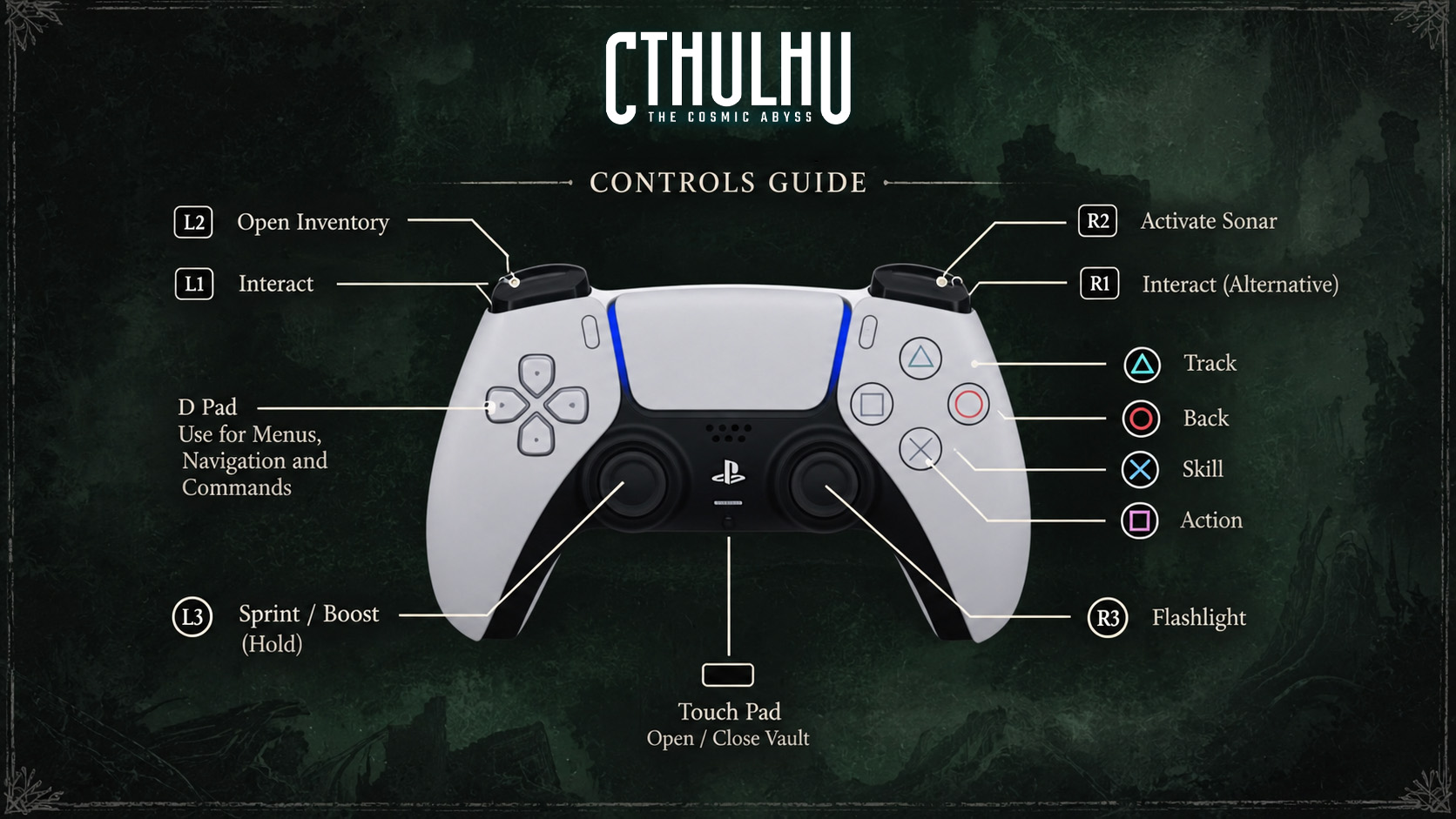
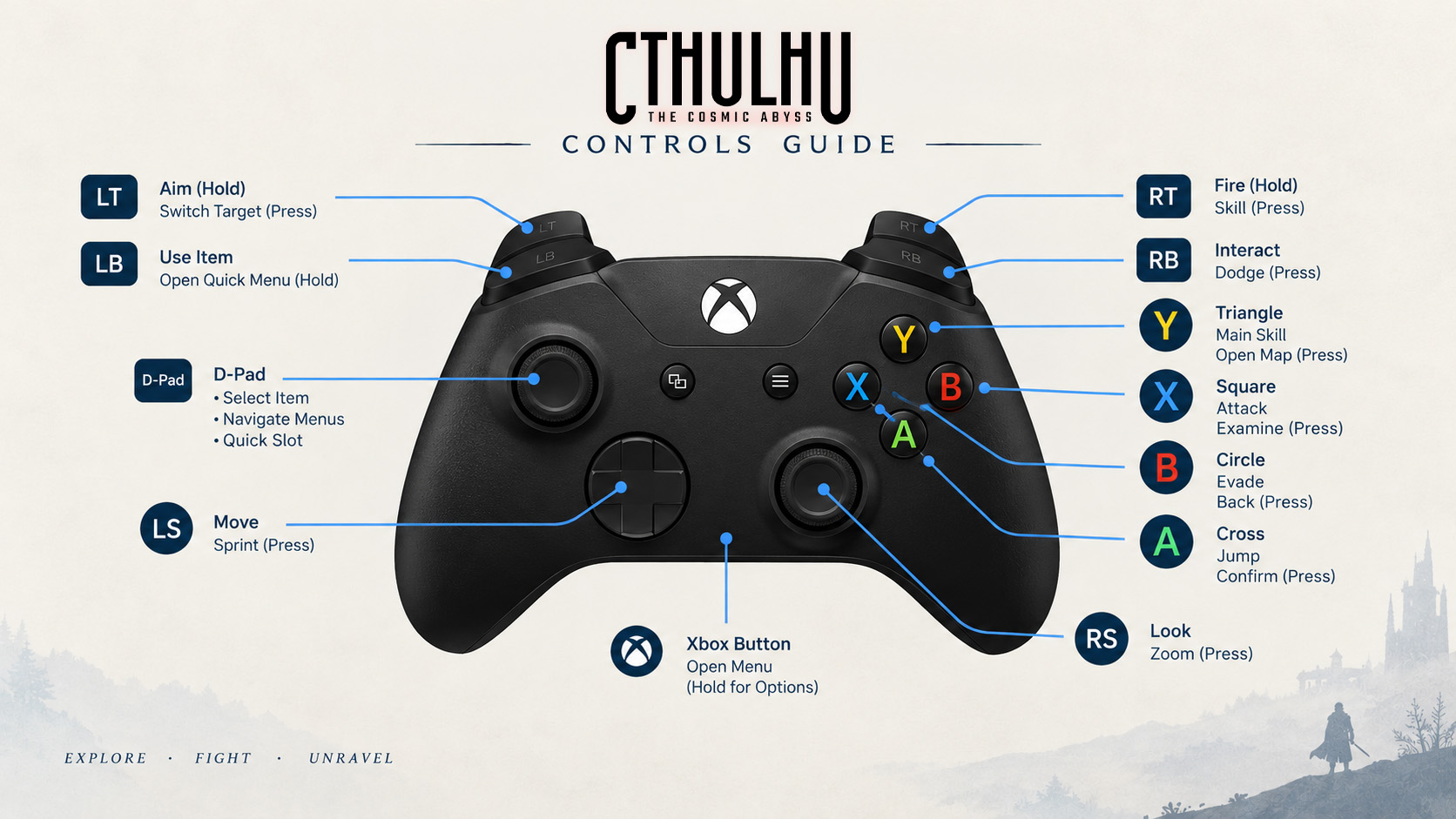
Some buttons perform different actions depending on whether you are exploring, using the sonar, or working inside an investigation interface. For example, L1 can be used for interaction or cycling sonar frequencies in the appropriate context.
Inventory and Object Controls
Items are not limited to being picked up and forgotten. You can examine objects, rotate them, and interact with your inventory to investigate details that may matter later.
| Action | PlayStation | Xbox |
|---|---|---|
| Put Object | Square | X |
| Put Object (Alternative) | R1 | RB |
| Take Object | D Pad | D Pad |
| Put Away | D Pad | D Pad |
| Take Out | D Pad | D Pad |
| Examine | D Pad | D Pad |
| Previous Object | D Pad | D Pad |
| Next Object | D Pad | D Pad |
| Rotate Object | Left Stick | Left Stick |
| Rotate Clockwise | R1 | RB |
| Rotate Anticlockwise | L1 | LB |
| Zoom In | R2 | RT |
| Zoom Out | L2 | LT |
| Take Examined Object | D Pad | D Pad |
The inventory uses directional inputs for several actions. Check the on-screen prompt to see which direction applies to the currently selected object or command.
Vault Investigation Controls
The Vault is where you organize clues and investigate possible connections. Learning its controls makes it easier to compare information without repeatedly backing out of the interface.
| Action | PlayStation | Xbox |
|---|---|---|
| Pan | Left Stick | Left Stick |
| Zoom In | R2 | RT |
| Zoom Out | L2 | LT |
| Move Clue | Cross | A |
| Link Clues | Square | X |
| Unlink Clues | Square | X |
| Unlink All | Square | X |
| Validate Link or Movement | Cross | A |
| Cancel Link or Movement | Circle | B |
| Cycle Clue State | D Pad | D Pad |
| Open Views List | D Pad | D Pad |
| Open History | D Pad | D Pad |
| Open / Close Vault | Touch Pad | View Button |
Sonar Configuration Controls
The sonar has its own configuration screen for managing frequencies and saved combinations.
| Action | PlayStation | Xbox |
|---|---|---|
| Scroll Frequencies | Left Stick | Left Stick |
| Toggle Frequency | Cross | A |
| Deactivate All Frequencies | Cross | A |
| Sort Frequencies | L3 | Left Stick Click |
| Open Selected Frequency in Vault | Triangle | Y |
| Navigate Horizontally | Left Stick / D Pad | Left Stick / D Pad |
| Save Combination | Square | X |
| Delete Saved Combination | Square | X |
| Close | Circle | B |
Menus and Investigation Interface Controls
Several investigation screens share the same navigation buttons, although individual actions can change depending on the selected menu.
| Action | PlayStation | Xbox |
|---|---|---|
| Navigate Menus | Left Stick / D Pad | Left Stick / D Pad |
| Previous Tab | L1 | LB |
| Next Tab | R1 | RB |
| Previous Panel | L2 | LT |
| Next Panel | R2 | RT |
| Validate | Cross | A |
| Return | Circle | B |
| Analyse Clue | Cross | A |
| Block Navigation | Right Stick | Right Stick |
| Pin Block | R3 | Right Stick Click |
| Block Action | Triangle | Y |
| Track Clue | Triangle | Y |
| Validate First Reading | Cross | A |
| Equip / Unequip Perk | Cross | A |
| Save Perk Configuration | Triangle | Y |
How to Change Controls in Cthulhu: The Cosmic Abyss
Open the game's control settings and select Configure Control Layout. The available bindings are organized into categories such as Movement, Interactions, Inventory, Clue, Object Manipulation, Vault, Sonar, Control, Game Menus, Dialogs, and Miscellaneous.
Select a category to inspect its commands. The configuration screen also shows the current button assigned to each action, making it useful whenever a contextual input is unclear.
Cthulhu: The Cosmic Abyss Controls FAQ
How do you sprint or swim faster?
Press L3 on PlayStation or click the left stick on Xbox. The same input is listed as Sprint / Boost in the movement settings.
How do you activate sonar?
Use R2 on PlayStation or RT on Xbox. You can open the sonar configuration with L2 or LT to manage frequencies.
How do you open the Vault?
Press the PlayStation touch pad. The corresponding Xbox controller input is the View button.
How do you examine an object?
Use the inventory's Examine command, then rotate the object with the left stick. R1 and L1 rotate it clockwise or anticlockwise, while R2 and L2 control zoom.
Can you customize the controls?
The game includes a Configure Control Layout screen with individual categories and assigned inputs. Open it to review the available bindings and configuration options.
Comments
No comments yet. Be the first to share your thoughts!