Mortal Shell II builds its combat around deliberate attacks, defensive timing and the abilities of the Shell you inhabit. Learning the controls early makes a real difference, especially when you need to switch between guarding, dodging, using a sidearm and activating a special ability in the middle of a fight.
This Mortal Shell II controls guide covers the PlayStation controller layout shown in the game, corresponding Xbox buttons and important actions such as Harden, parry, lock on, healing and weapon abilities. Some buttons perform different actions depending on your equipment or whether you are using the lute.
Mortal Shell II PlayStation and Xbox Controls
The table follows the controller layout shown in the game's settings menu. Xbox buttons are translated from the corresponding PlayStation inputs, rather than taken from a separate Xbox settings screen.
| Action | PlayStation | Xbox Equivalent |
|---|---|---|
| Move | Left Stick | Left Stick |
| Look Around | Right Stick | Right Stick |
| Weapon Ability A / Hold to Aim | L2 | LT |
| Weapon Ability B / Heavy Attack / Fire Sidearm | R2 | RT |
| Parry / Slayer Punch / Guard / Harden | L1 | LB |
| Light Attack / Sidearm Ability | R1 | RB |
| Shell Ability | Triangle | Y |
| Dodge | Circle | B |
| Hold to Sprint / Interact | Cross | A |
| Infusion with Tarstone / Play Lute | Square | X |
| Mether's Pulse / Heal | D Pad Up | D Pad Up |
| Use PP Item / Change Lute Track | D Pad Right | D Pad Right |
| Open Map | D Pad Left | D Pad Left |
| Shell Secondary Ability | D Pad Down | D Pad Down |
| Toggle Sprint / Sit Down with Lute | L3 | LS |
| Toggle Lock On | R3 | RS |
| Character Menu | Touchpad | View Button Equivalent |
| Options Menu | Options Button | Menu Button |
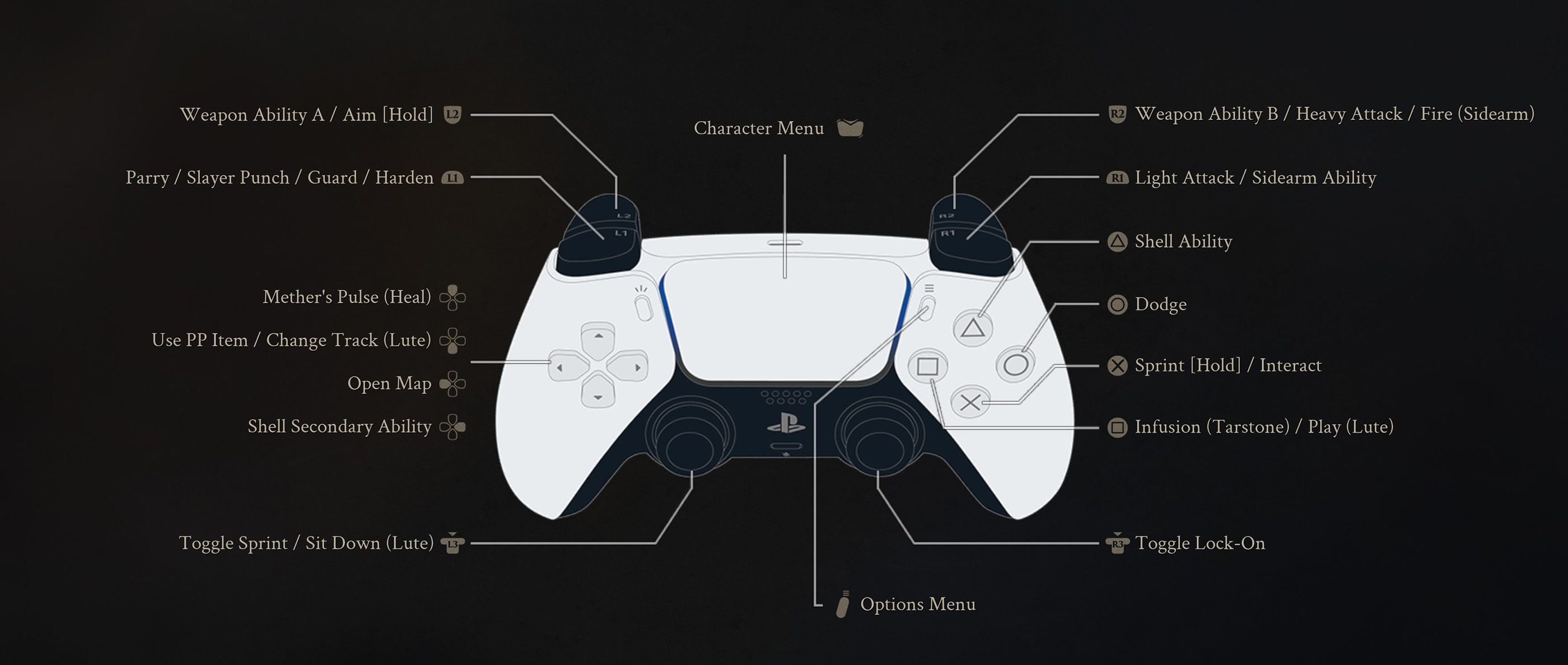
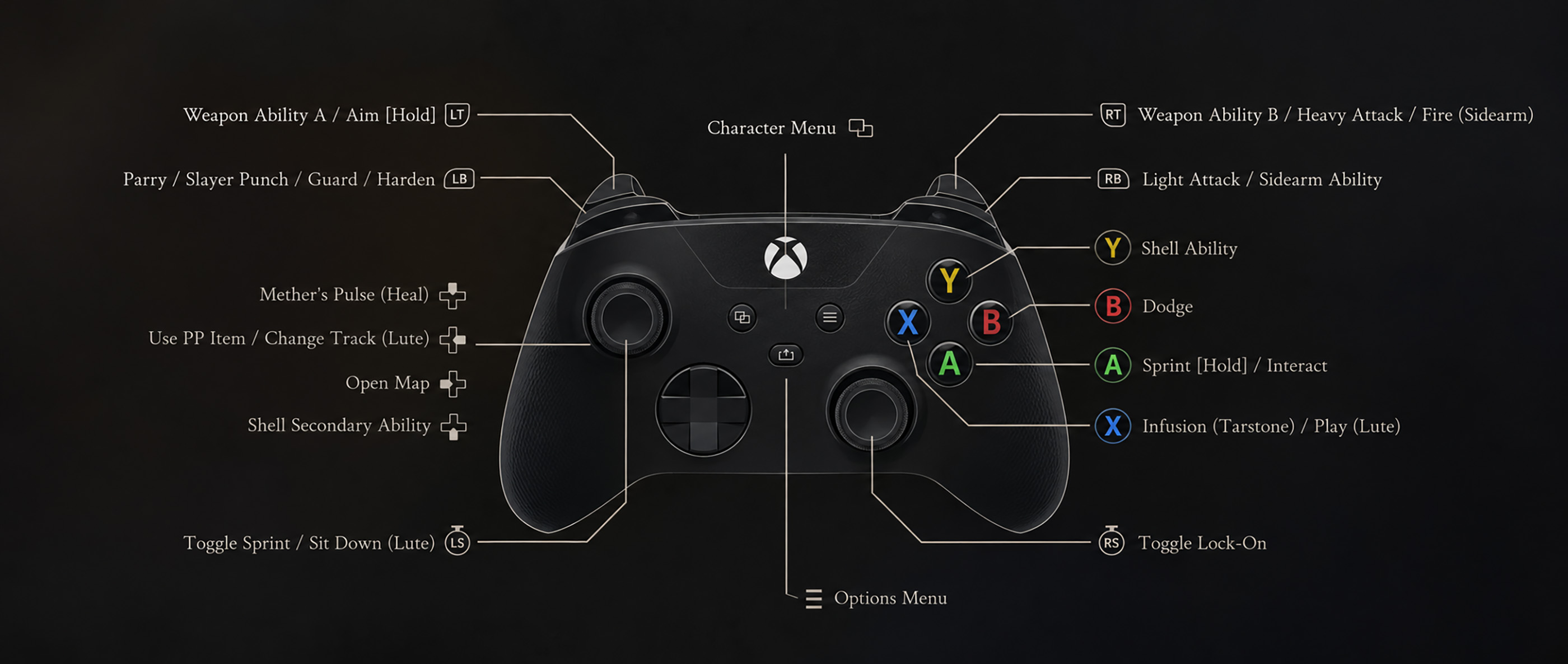
The PlayStation screenshot does not show dedicated movement labels for the analog sticks, but their standard movement and camera functions are reflected in the layout. The Xbox View button is the closest conventional equivalent to the PlayStation touchpad, although its actual assignment should be checked in the Xbox version.
How to Harden, Guard and Parry in Mortal Shell II
L1 on PlayStation, or the corresponding LB button on Xbox, is assigned to several defensive actions: Parry, Slayer Punch, Guard and Harden.
These are contextual functions rather than four separate buttons. The action available depends on your current equipment and combat situation. Pay attention to the ability your character currently has equipped instead of assuming that every press will perform the same defense.
Harden is one of the series' defining mechanics. Use it deliberately when an enemy is preparing an attack, and avoid treating it as a substitute for learning enemy timing.
Light Attacks, Heavy Attacks and Weapon Abilities
R1 performs a light attack, while R2 is assigned to heavy attacks and other contextual weapon functions. L2 is used for Weapon Ability A or aiming when held.
When using a sidearm, the right trigger is also assigned to firing, while R1 can activate the sidearm ability. This means the same shoulder buttons serve different purposes depending on the weapon currently in use.
Practice the basic attack inputs with your chosen weapon before experimenting with its special abilities. Familiarity with the attack animations will help you recognize when it is safe to commit to another strike.
How to Dodge, Sprint and Lock On
Press Circle on PlayStation or B on Xbox to dodge. Hold Cross or A to sprint, or click the left stick to toggle sprint.
Press R3 or RS to toggle lock on. Locking onto an enemy can help you maintain your focus during close combat, while unlocking gives you more freedom to look around and reposition when several threats are nearby.
How to Heal With Mether's Pulse
The controller menu assigns Mether's Pulse, labelled as Heal, to D Pad Up.
Make a habit of remembering the healing input before entering a difficult encounter. Healing is easier to manage when you create distance from enemies instead of trying to recover while they are actively attacking.
How to Use Shell Abilities
Press Triangle on PlayStation or Y on Xbox to activate your Shell Ability. D Pad Down is assigned to the Shell Secondary Ability.
The specific effect depends on the Shell and abilities available to your character. Check the character menu when learning a new Shell so you understand what each ability does before relying on it in combat.
How to Use Tarstone Infusions and PP Items
Square on PlayStation, or X on Xbox, is assigned to Infusion when using Tarstone. D Pad Right activates the assigned PP item.
These are separate from your standard attacks and healing input. Remember their locations so you can use the appropriate resource without accidentally performing another action.
How to Play the Lute in Mortal Shell II
The lute has its own contextual controls. Press Square or X to play, use D Pad Right to change tracks and click the left stick to sit down.
These actions share buttons with combat and item functions, so their behavior changes when the lute is being used.
Can You Change the Controls in Mortal Shell II?
The settings menu includes Controller and Keybindings sections. The controller screen also provides access to Button Settings.
If the default layout feels uncomfortable, review these settings before committing to a difficult combat section. Players using a keyboard and mouse should consult the Keybindings menu for the actual assigned keys rather than relying on controller button conversions.
Mortal Shell II Controls FAQ
What button is Harden?
The displayed PlayStation layout assigns Harden and other contextual defensive actions to L1. The corresponding Xbox button is LB.
How do you lock onto enemies?
Press R3 on PlayStation or RS on Xbox to toggle lock on.
How do you heal?
Press D Pad Up to activate Mether's Pulse.
How do you open the map?
Press D Pad Left.
How do you sprint?
Hold Cross on PlayStation or A on Xbox, or click the left stick to toggle sprint.


Comments
No comments yet. Be the first to share your thoughts!