Marvel's Spider Man 2 gives Peter Parker and Miles Morales a large moveset, but the default controls are arranged around a simple idea. Your right hand handles attacks, web movement and gadgets, while the left shoulder buttons control aiming, parrying and Spider abilities.
The most important additions compared with the earlier games are parrying, Web Wings and the expanded ability system. L1 is especially important because a quick press parries incoming attacks while holding it opens your equipped ability inputs. R1 follows a similar idea for web shooters and gadgets.
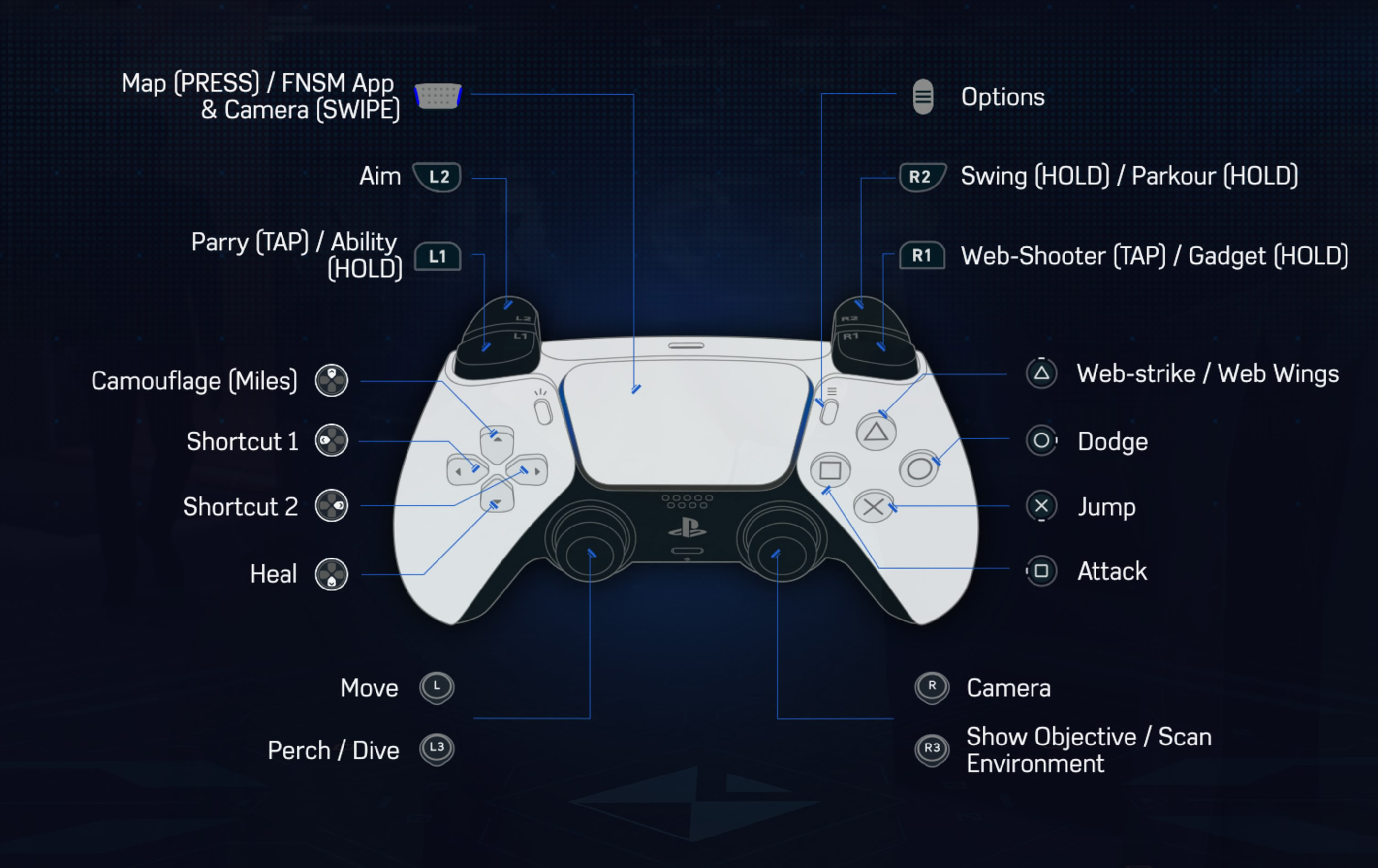
The controls below focus on the default PlayStation 5 layout shown in the game. Marvel's Spider Man 2 also supports custom button mapping, so a personal setup may differ from the default commands.
Basic Controls
| Action | PlayStation 5 |
|---|---|
| Move | Left Stick |
| Camera | Right Stick |
| Jump | Cross |
| Attack | Square |
| Dodge | Circle |
| Web Strike | Triangle |
| Web Wings | Triangle while airborne |
| Aim | L2 |
| Parry | Tap L1 |
| Ability | Hold L1 + Assigned Face Button |
| Web Shooter | Tap R1 |
| Gadget | Hold R1 + Assigned Face Button |
| Swing | Hold R2 |
| Parkour | Hold R2 while moving |
| Perch / Dive | L3 |
| Scan Environment / Show Objective | R3 |
| Map | Press Touch Pad |
| FNSM App / Camera | Swipe Touch Pad |
| Options | Options Button |
Attacking
Square is your standard attack button. Repeated presses create basic ground combos, but Spider Man becomes much more effective when you mix normal attacks with launches, Web Strikes, abilities, gadgets and aerial combat.
Do Not Stay Grounded for Every Fight
Launching enemies and continuing the combo in the air separates them from the crowd and reduces the number of opponents who can attack you at once.
Change Targets Naturally
Use movement input toward another nearby enemy while attacking rather than repeatedly hitting empty space after your first target is knocked away.
Dodging
Press Circle to dodge incoming attacks.
Spider Sense warns you before danger reaches Peter or Miles. Dodging remains essential for gunfire, projectiles and attacks that are safer to evade than challenge directly.
Watch the Warning Color
Not every incoming attack should be handled in the same way. Some attacks encourage a parry while others require you to move out of danger.
Dodge toward Better Position
A dodge is also a repositioning tool. Moving toward open space is usually better than rolling directly into another group of enemies.
How to Parry
Tap L1 to parry.
Parrying is one of the most important combat changes in Marvel's Spider Man 2. Certain powerful enemy attacks are specifically designed around this mechanic and cannot simply be handled by repeatedly dodging.
Wait for the Correct Moment
Press L1 as the attack warning reaches its dangerous stage rather than tapping the button continuously.
Counterattack Immediately
A successful parry can leave an enemy exposed. Follow with attacks or an ability before the opponent recovers.
Spider Abilities
Hold L1 to access your equipped abilities, then press the corresponding face button.
Peter and Miles have different ability sets. Peter gains mechanical Spider Arm attacks and later gains access to powerful symbiote abilities, while Miles uses bioelectric Venom abilities.
Use Abilities to Control Groups
Abilities are particularly useful when several enemies are close together. Launching, stunning or pushing multiple targets creates breathing room much faster than attacking them one at a time.
Spend Abilities Instead of Hoarding Them
Ability cooldowns exist to be used. Leaving every ability available through an entire encounter wastes a major part of your combat toolkit.
Web Shooter Controls
Tap R1 to fire a web shot at the current target.
Web Enemies near Walls
Webbing becomes much more powerful when an enemy is close to a wall, floor or another suitable surface.
Interrupt Dangerous Enemies
A quick web shot can interrupt an opponent long enough to reposition or begin another attack.
Use Several Shots when Necessary
A single tap may only slow a stronger enemy. Repeated webbing can create a much more useful opening.
Using Gadgets
Hold R1 and press the assigned face button to activate one of your equipped gadgets.
Gadgets integrate directly into combat rather than functioning as a separate weapon system. Tools such as the Web Grabber can pull enemies together, while other gadgets can launch or disrupt targets.
Group Enemies before an Area Attack
Pulling several opponents into one location creates an ideal target for an ability that damages or launches multiple enemies.
Do Not Wait until You Are Surrounded
Gadgets are often strongest when used early enough to control how the encounter develops.
Web Strike
Press Triangle when a valid enemy is targeted to perform a Web Strike.
This rapidly closes distance and is excellent for reaching ranged enemies or continuing a combo after knocking someone across the battlefield.
Target Ranged Enemies First
A Web Strike can get you across the encounter before shooters have time to repeatedly interrupt your melee attacks.
Web Swinging
Hold R2 while moving through the city to swing when a suitable web connection is available.
Release while Moving Upward
Releasing the web near the upward portion of the swing helps convert momentum into height and forward distance.
Do Not Hold One Swing Forever
The fastest traversal comes from combining swings, releases, dives and Web Wings instead of remaining attached until momentum disappears.
Parkour Controls
Hold R2 while moving across rooftops, streets and obstacles to use contextual parkour.
Spider Man automatically vaults or runs across many environmental objects when your movement direction is clear.
Use Parkour in Dense Areas
Ground level movement can be faster than repeatedly starting short web swings when buildings and obstacles are tightly packed.
Web Wings
Press Triangle while airborne to deploy the Web Wings.
Web Wings are especially valuable when crossing rivers, parks and neighborhoods with fewer tall buildings.
Build Speed before Gliding
Start with a fast swing or a dive, then deploy the wings while you still have strong momentum.
Look for Wind Tunnels
Wind tunnels around New York can provide substantial speed and make long glides dramatically faster.
Combine Wings and Swinging
Web Wings do not replace web swinging. Switching between both systems is usually the fastest and most flexible way to cross the city.
Diving
Press L3 during suitable traversal situations to dive.
A dive builds speed and can feed directly into a fast web swing or Web Wings launch.
Do Not Dive Too Close to the Ground
Give yourself enough altitude to convert the downward momentum into forward movement before reaching street level.
Aiming
Hold L2 to aim at environmental points and contextual targets.
Aiming is useful for precise traversal, stealth interactions and environmental actions where automatic targeting does not select exactly what you want.
Point Launch and Traversal Targets
Spider Man can rapidly zip toward suitable perches and surfaces before launching forward.
Use precise aiming when you want a specific rooftop edge, antenna, ledge or environmental point instead of relying entirely on automatic traversal.
Use Point Launches to Preserve Momentum
A good launch can carry you directly into a swing, glide or another traversal action without forcing you to stop.
Scan the Environment
Press R3 to scan your surroundings and show useful environmental information or your current objective.
Scan When the Objective Marker Becomes Unclear
Some activities take place above, below or inside your current position. Scanning can help you identify the correct direction without circling the block repeatedly.
Use It during Exploration
Scanning is also useful while looking for activities and interactive elements around New York.
Touch Pad Controls
Press the Touch Pad to access the map.
Touch Pad gestures are also used for shortcuts such as the FNSM App and camera related functions depending on the current context.
Use the FNSM App for Activities
The Friendly Neighborhood Spider Man App provides quick access to available requests and activities without requiring you to search the entire map manually.
Miles Camouflage
Miles can activate camouflage through his assigned D Pad command.
Camouflage is particularly useful for stealth recovery. If an encounter begins to go wrong, breaking sight and disappearing can give Miles an opportunity to reposition.
Do Not Use It Only for Escaping
Camouflage can also help Miles approach an enemy group from a better angle before combat begins.
Healing
The default controller layout assigns healing to a D Pad shortcut when sufficient Focus is available.
Heal before the Next Hit
If your health is already dangerously low, waiting for the current enemy animation to finish may be too late. Create distance and heal as soon as it becomes safe.
Remember Focus Has Other Uses
Using Focus for healing can reduce what is available for other powerful combat actions, so do not heal unnecessarily after every minor hit.
Stealth Controls and Web Lines
Stealth encounters allow you to move above enemies, perch on environmental points and perform silent takedowns when the target is safe.
Spider Man 2 also introduces Web Lines, letting you create new elevated paths across suitable locations.
Build Your Own Safe Position
When the existing ceiling or perch layout is inconvenient, create a Web Line above the encounter and use it as another stealth route.
Check Enemy Safety before a Takedown
Do not automatically attack the first enemy beneath you. Make sure nearby enemies will not immediately detect the takedown.
Changing between Peter and Miles
Outside moments where the story requires a particular character, you can switch between Peter Parker and Miles Morales from the relevant interface option.
Both Spider Men share many core combat and traversal controls, but their abilities feel different enough that switching can refresh how you approach crimes and activities.
Custom Control Presets
Marvel's Spider Man 2 provides Default, Left Bias and Right Bias controller presets along with custom mapping slots.
If a frequently used command feels uncomfortable, open the controller settings and create a layout that better suits your hands.
Keep Combat Commands Easy to Reach
Attack, dodge, parry, ability and gadget inputs are used constantly. Prioritize comfort for those actions before changing rarely used shortcuts.
Frequently Asked Questions
How do you attack in Marvel's Spider Man 2?
Press Square.
How do you dodge?
Press Circle.
How do you parry?
Tap L1 when the incoming attack reaches the correct parry timing.
How do you use Spider abilities?
Hold L1 and press the face button assigned to the ability you want.
How do you use gadgets?
Hold R1 and press the corresponding gadget button.
How do you shoot webs?
Tap R1.
How do you Web Strike?
Press Triangle while targeting a valid enemy.
How do you swing?
Hold R2 while moving through an area with suitable web attachment points.
How do you use Web Wings?
Press Triangle while airborne.
How do you scan the environment?
Press R3.
How do you open the map?
Press the Touch Pad.
Can you remap the controls?
Yes. The game provides controller presets and custom mapping options.
Learn Five Inputs First
If the full controller layout feels overwhelming, begin with Square for attacks, Circle for dodging, L1 for parrying, R1 for web shots and R2 for swinging. Those commands cover most of what you need during your first hours.
After that, start adding abilities and gadgets into combat and practise switching naturally between web swinging and Web Wings. Marvel's Spider Man 2 feels at its best when movement and combat flow together without stopping to think about every button.
See our Marvel's Spider Man 2 Tips and Tricks Guide for combat, traversal, gadgets, abilities, stealth, upgrades and exploration advice.
Comments
No comments yet. Be the first to share your thoughts!