Roblox controls are easy to learn at a basic level, but there is one important difference compared with most games: Roblox is a platform containing millions of individual experiences. The basic movement, camera and menu controls are shared across most games, while developers can assign their own buttons for weapons, tools, vehicles, abilities and special actions.
On PlayStation, the standard Roblox layout uses the left stick for movement, the right stick for the camera, Cross to jump, R2 to use the equipped tool and L1 or R1 to cycle through available tools. The Help screen shown inside Roblox is especially useful because it displays the current controller layout without forcing you to leave the experience.
This guide covers the standard Roblox controls for PlayStation, Xbox and PC, plus camera controls, tools, menus, controller navigation and what to do when a particular Roblox experience uses different buttons.
Roblox PlayStation Controls
| Action | PlayStation |
|---|---|
| Move | Left Stick |
| Rotate Camera | Right Stick |
| Jump | Cross |
| Use Tool | R2 |
| Switch Tool | L1 / R1 |
| Camera Zoom | R3 |
| Game Menu Toggle | Touch Pad |
| Roblox Menu | Options |
| Back | Circle |
| Menu Navigation | D Pad |
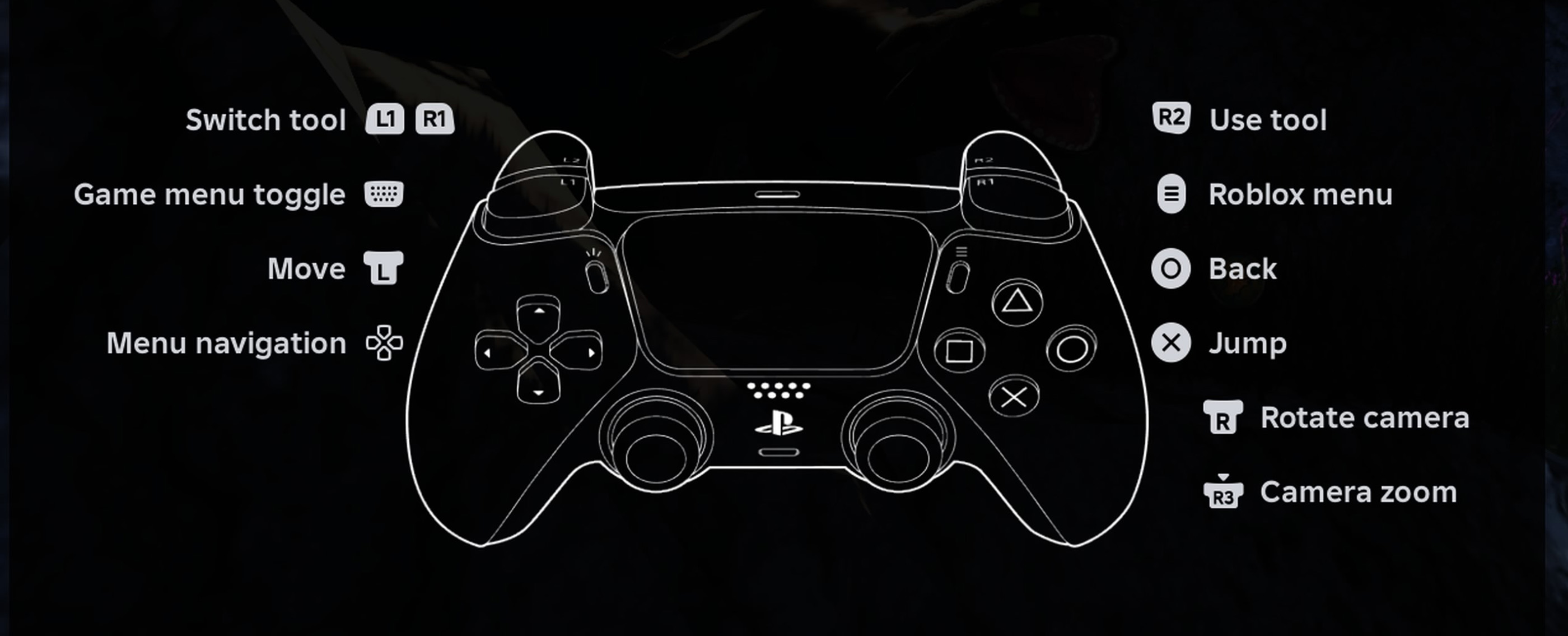
These are the standard controls shown by Roblox on PlayStation. Individual experiences can add or replace commands, particularly for combat, vehicles and unique abilities.
How to Move in Roblox
Use the left stick on a controller to move your avatar. On PC, the standard movement keys are W, A, S and D.
Use Smaller Stick Movements near Edges
Platforming experiences often require much finer control than an obstacle free social game. Avoid holding the stick fully forward when approaching a narrow ledge or small landing.
Movement Can Change between Experiences
Some Roblox games replace normal walking with vehicles, flying, swimming or custom character movement. Always pay attention to the instructions provided by the experience itself.
How to Jump
Press Cross on PlayStation or A on Xbox to jump in experiences that use standard Roblox character controls.
On PC, press Space.
Jump Timing Matters in Obbies
Obstacle courses often require you to jump from the edge of a platform rather than immediately after beginning to move. Build enough momentum first, then jump when your avatar reaches the correct point.
Not Every Experience Allows Jumping
Developers can restrict or replace the standard jump command. If Cross or A does nothing, the experience may intentionally use different movement rules.
Camera Controls
Use the right stick on PlayStation or Xbox to rotate the camera around your avatar.
On PC, camera control commonly uses the mouse. Holding the appropriate mouse button while moving the mouse allows you to rotate your view in experiences using the standard camera system.
Camera Zoom
On PlayStation, pressing R3 provides the standard camera zoom command shown in the Roblox Help menu.
On PC, the mouse wheel normally changes camera distance where the experience allows it.
Camera Behavior Can Be Locked
Roblox supports different camera styles, but an experience developer can force a particular view. Some games use first person, fixed camera or custom cinematic systems that cannot be changed by the player.
Using Tools on PlayStation
Press R2 to use the currently selected tool when the experience follows Roblox's standard tool system.
A tool can be almost anything depending on the game. It might be a weapon, building item, flashlight, fishing rod, scanner, healing item or another gameplay object.
Switch Tools with L1 and R1
L1 and R1 cycle through the tools currently available to your character.
Check the Screen after Switching
Roblox experiences often display the active tool through an icon, hotbar slot or character animation. Confirm what you selected before pressing R2.
Roblox Xbox Controls
| Action | Xbox |
|---|---|
| Move | Left Stick |
| Rotate Camera | Right Stick |
| Jump | A |
| Use Tool / Primary Action | RT in many standard experiences |
| Cycle Tools / Secondary Actions | LB / RB when supported |
| Camera Control / Zoom Function | Right Stick / Press Right Stick when supported |
| Open Roblox Menu | Menu Button |
| Back | B |
| Navigate Menus | D Pad / Left Stick |
Xbox controls follow the same general gamepad philosophy as PlayStation, but individual developers can assign additional functions to any available controller button.
Roblox PC Keyboard and Mouse Controls
| Action | PC |
|---|---|
| Move Forward | W |
| Move Left | A |
| Move Backward | S |
| Move Right | D |
| Jump | Space |
| Camera | Mouse |
| Zoom | Mouse Wheel |
| Open Roblox Menu | Esc |
| Shift Lock | Shift when enabled |
| Developer Console | F9 |
| Fullscreen on Windows | F11 |
| Screenshot | Print Screen |
Game specific actions are normally shown on screen. Common PC commands include number keys for inventory slots, mouse buttons for primary actions and keys such as E, F, Q or R for abilities, but these are created by each experience developer and should not be treated as universal Roblox controls.
Classic and Follow Camera Modes
Roblox can provide Classic and Follow camera styles when the experience has not locked camera behavior.
Classic Camera
Classic gives you more manual control of the viewing direction. It works well in experiences where you frequently inspect the environment or need careful platforming visibility.
Follow Camera
Follow causes the view to rotate with your avatar as you change direction. Some players find this more comfortable in exploration experiences.
The available options depend on the experience because developers can restrict the camera system.
Shift Lock on PC
Shift Lock can make certain third person Roblox experiences much easier to control by keeping your avatar aligned more closely with the camera direction.
When an experience supports the feature and the setting is enabled, press Shift to toggle the relevant camera behavior.
Useful for Obbies and Combat
Shift Lock can improve directional control when moving across narrow platforms, fighting another player or making jumps where character orientation matters.
It Is Not Available Everywhere
Developers can disable or replace the standard Roblox camera system, so do not expect Shift Lock to function in every experience.
How to Open the Roblox Help Screen on PlayStation
Press Options while inside an experience to open the Roblox menu. Navigate to the Help tab to see the standard controller diagram.
The Help screen displays commands such as movement, jumping, tool use, tool switching, camera control and menu navigation.
Use Help When a Button Stops Making Sense
Roblox experiences frequently add their own controller behavior. Checking the Help screen and any instructions provided by the developer is faster than assuming every game uses an identical layout.
Why Roblox Controls Change between Games
Roblox gives developers standard gamepad inputs, but creators can assign those buttons to actions designed specifically for their experience.
For example, R2 might use a normal tool in one experience, fire a weapon in another and accelerate a vehicle somewhere else.
Face Buttons Can Be Completely Different
Cross or A commonly remains Jump when standard movement is active, but a developer can create additional context based actions.
Shoulder Buttons Often Control Abilities
L1, R1, L2 and R2 are commonly used for targeting, weapons, sprinting, inventory functions and special powers because they are easy to reach while moving.
Controller Navigation in Menus
Use the D Pad or available stick navigation to move through Roblox interface elements on console.
Some experiences create their own menus, which means selection behavior may differ from the standard Roblox interface.
Look for the Highlighted Element
Console navigation normally moves focus between interface buttons. Before confirming, make sure the intended option is highlighted.
Use Circle or B to Back Out
Circle on PlayStation and B on Xbox commonly return to the previous interface or close a menu when standard Roblox navigation is being used.
Roblox Accessibility Settings
Open the Roblox menu and visit Settings to review available accessibility and presentation options.
Roblox includes options such as Reduce Motion and Background Transparency. These can make interface elements easier to follow or reduce unnecessary screen movement.
Adjust Camera and Graphics Too
If movement feels difficult or the game is visually overwhelming, review camera behavior and graphics settings before assuming the problem is the controller.
Can You Use a Controller on PC Roblox?
Yes. Roblox supports gamepads on compatible devices, and many experiences provide controller input alongside keyboard and mouse.
Controller quality still depends on the individual experience. Games designed carefully for console usually provide clearer prompts and easier menu navigation than experiences originally created only around mouse input.
Frequently Asked Questions
How do you move in Roblox on PlayStation?
Use the left stick.
How do you move the camera?
Use the right stick on PlayStation and Xbox. PC players normally use the mouse.
How do you jump in Roblox on PS5?
Press Cross when the experience uses standard Roblox jumping.
How do you jump on Xbox?
Press A.
How do you use a tool on PlayStation?
Press R2 with the tool selected.
How do you switch tools on PlayStation?
Use L1 and R1.
How do you zoom the camera on PlayStation?
Press R3 when the standard Roblox camera controls are active.
How do you open the Roblox menu on PlayStation?
Press Options.
How do you see the controls while playing?
Open the Roblox menu and enter the Help tab to view the controller diagram.
Why are my Roblox controls different?
Each Roblox experience can create its own actions and controller bindings. The standard movement and camera layout is common, but combat, tools, vehicles and abilities can differ.
Can Roblox controls change after an update?
Yes. Experience developers can update their control scheme at any time, so follow the current prompts if they differ from an older guide.
Does Roblox support controllers on PC?
Yes, although controller support and button mapping can vary between experiences.
Can Roblox use controller vibration?
Yes. Roblox supports gamepad haptic feedback, although whether you feel vibration depends on how the individual experience uses it.
Check the Experience before Blaming the Controller
The easiest way to understand Roblox controls is to separate platform controls from experience controls. Movement, camera navigation, jumping and the Roblox menu are generally familiar from one game to another, while tools, weapons and abilities belong to the individual experience.
If an action is unclear on PlayStation, open Options and check the Help tab first, then look for instructions provided inside the experience. That approach is far more reliable than expecting every Roblox game to use exactly the same buttons.
See our Roblox Tips and Tricks Guide for useful advice on finding better experiences, controller settings, performance, multiplayer, Robux and account safety.
Comments
No comments yet. Be the first to share your thoughts!