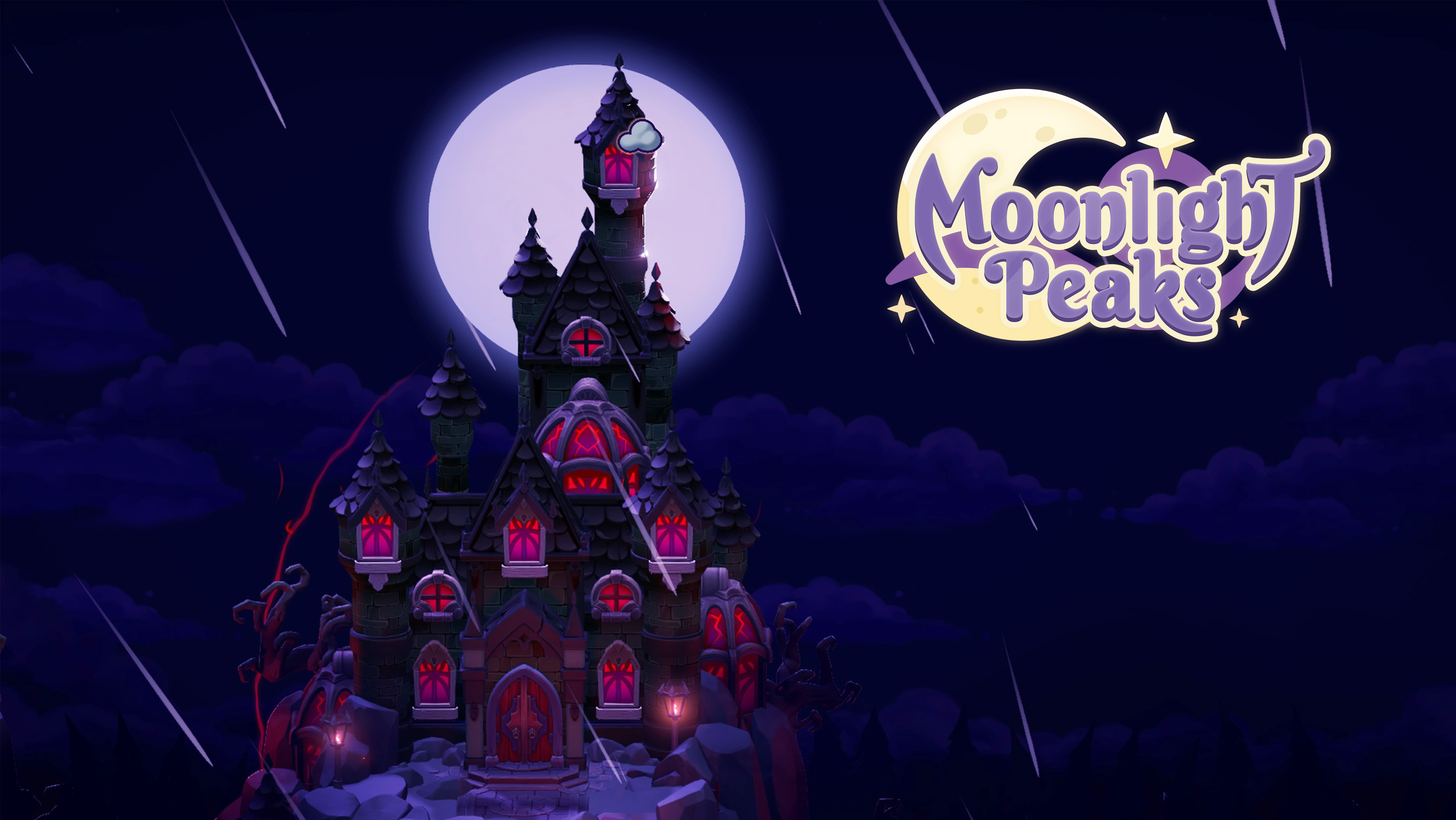
Moonlight Peaks is a supernatural farming and life simulation game where you begin a new life as a vampire in a charming town filled with witches, werewolves, mermaids and other magical residents. Between growing unusual crops, learning spells, decorating your home and getting to know the locals, there is plenty to keep you busy after sunset.
This Moonlight Peaks controls guide covers keyboard and mouse, Xbox controllers and PlayStation controllers on PC, including movement, tools, shapeshifting, inventory, decorating and menus. It also explains Nintendo Switch controls, useful shortcuts and how to customize your button assignments.
Moonlight Peaks Controls for PC and Controllers
The game supports keyboard and mouse as well as controllers. The following tables cover the published default bindings. PlayStation button names are shown alongside Xbox equivalents, while Nintendo Switch uses its own controller layout.
| Action | PC Keyboard and Mouse | Xbox Controller | PlayStation Controller |
|---|---|---|---|
| Move Forward | W | Left Stick Up | Left Stick Up |
| Move Backward | S | Left Stick Down | Left Stick Down |
| Move Left | A | Left Stick Left | Left Stick Left |
| Move Right | D | Left Stick Right | Left Stick Right |
| Interact / Talk | Space / Right Mouse Button | A | Cross |
| Use Equipped Tool | R / Left Mouse Button | X | Square |
| Open Tool Wheel | E | RB | R1 |
| Open Form Wheel | Q | LB | L1 |
| Unequip Tool | Backspace | B | Circle |
| Switch Tool Sheet | R | X | Square |
| Open Inventory | D | Y | Triangle |
| Open Journal | Tab | View | Share / Create |
| Open Map | M | Through Journal | Through Journal |
| Open Storage | G | D Pad Down | D Pad Down |
| Enter Decorate Mode | X | D Pad Up | D Pad Up |
| Empty Food Bowl | T | D Pad Down | D Pad Down |
| Zoom In | Minus (-) | Left Stick Vertical | Left Stick Vertical |
| Zoom Out | Equals (=) | Left Stick Vertical | Left Stick Vertical |
| Cancel / Back | Esc | B | Circle |
Some buttons have different functions depending on the active screen. For example, R is used for tools and switching sheets, while D is both a movement key and the inventory shortcut. Contextual controls determine which action takes priority.
Moonlight Peaks Tool Wheel and Shapeshifting Controls
Rather than keeping a permanent toolbar on the screen, Moonlight Peaks uses a radial tool wheel. You can select farming equipment when you need it and put it away when travelling around town.
Press E on PC, RB on an Xbox controller or R1 on a PlayStation controller to access the tool wheel. The separate form wheel uses Q, LB or L1 and allows you to select available vampire transformations after unlocking them.
Tools include equipment for digging, watering, chopping, mining and other farming activities. Select the appropriate tool before approaching the object or tile you want to work with.
Moonlight Peaks Decorating Controls
Decorating has its own controls for picking up furniture, changing shapes, rotating objects and switching floor modes. These actions let you arrange your gothic homestead without relying entirely on the regular farming controls.
| Action | PC Keyboard and Mouse | Xbox Controller | PlayStation Controller |
|---|---|---|---|
| Enter Decorate Mode | X | D Pad Up | D Pad Up |
| Pick Up / Place Object | Space | A | Cross |
| Put Object in Inventory | G / Middle Mouse Button | X | Square |
| Change Shape | E / Right Mouse Button | D Pad Down | D Pad Down |
| Rotate Left | Q | LB | L1 |
| Rotate Right | E | RB | R1 |
| Toggle Floor Mode | J | D Pad Right | D Pad Right |
Use the rotation buttons to position furniture before placing it. Smaller decorations can also be arranged on compatible surfaces, giving you more freedom when designing rooms.
Moonlight Peaks Inventory and Menu Controls
The inventory, journal and interface have several shortcuts that become particularly useful once you begin collecting more materials, recipes and magical items.
| Action | PC Keyboard and Mouse | Xbox Controller | PlayStation Controller |
|---|---|---|---|
| Confirm | F | X | Square |
| Submit | Space | A | Cross |
| Navigate Up / Down | W / S | Left Stick / D Pad | Left Stick / D Pad |
| Navigate Left / Right | A / D | Left Stick / D Pad | Left Stick / D Pad |
| Previous Tab | 1 | LT | L2 |
| Next Tab | 2 | RT | R2 |
| Previous Page | Q | LB | L1 |
| Next Page | E | RB | R1 |
| Page Up | Page Up | Left Stick Up | Left Stick Up |
| Page Down | Page Down | Left Stick Down | Left Stick Down |
| Sort Inventory | X | X | Square |
| Mark All as Read | F | Y | Triangle |
| Favorite Mail | F | Y | Triangle |
| Cycle Map | F | Y | Triangle |
| Cancel Tool / Form Wheel | Backspace | B | Circle |
| Toggle Minigame Control Help | Tab | View | Share / Create |
Moonlight Peaks Crafting Minigame Controls
Moonlight Peaks also includes creative activities such as pottery, embroidery and Nocturna. These have their own inputs, so learning the shortcuts can save time when working on a design.
| Action | PC Keyboard and Mouse | Xbox Controller | PlayStation Controller |
|---|---|---|---|
| Pottery: Place Stamp | Space / Left Mouse Button | A | Cross |
| Pottery: Reset | Delete | B | Circle |
| Pottery: Enlarge Shape | Left Arrow / Left Mouse Button | Left Stick | Left Stick |
| Pottery: Shrink Shape | Right Arrow / Right Mouse Button | Left Stick | Left Stick |
| Pottery: Smooth Front | Space | A | Cross |
| Embroidery: Clear | Delete | Y | Triangle |
| Nocturna: Exit | Enter | X | Square |
| Nocturna: Flip Horizontally | 1 | D Pad Down | D Pad Down |
| Nocturna: Flip Vertically | 2 | D Pad Up | D Pad Up |
| Nocturna: Place Stitch | Space / Left Mouse Button | A | Cross |
| Nocturna: Remove Stitch | Right Mouse Button | B | Circle |
| Nocturna: Inspect Card | I / Right Mouse Button | Y | Triangle |
Moonlight Peaks Nintendo Switch Controls
Moonlight Peaks is available on Nintendo Switch and Nintendo Switch 2. The game supports controller gameplay, including movement with the left stick and contextual actions shown on screen.
On Switch, D Pad Up opens decorating, while D Pad Down opens shared house storage. The right shoulder button opens the radial tool wheel. Button prompts for other activities may change depending on whether you are farming, decorating or navigating a menu.
How to Transfer Items to House Storage Quickly
Moonlight Peaks has a shared storage system that reduces the need to carry every crafting material in your backpack. On PC, Shift + Enter provides a shortcut for moving items between your inventory and house storage.
With a controller, hold the left trigger and press the bottom face button, which is LT + A on Xbox or L2 + Cross on PlayStation. This shortcut is especially useful when returning from gathering materials or organizing supplies.
How to Change Controls in Moonlight Peaks
Open Settings from the title menu and select the Controls section. Here you can review the keyboard and controller bindings and adjust them to suit your preferred setup.
The game supports full controller input on Steam, including Xbox and PlayStation controllers, and is Steam Deck Verified. The developer recommends using a controller, although keyboard and mouse are also supported.
Moonlight Peaks Controls FAQ
How do you interact with characters in Moonlight Peaks?
Press Space or the right mouse button on PC. On an Xbox controller use A, or Cross on a PlayStation controller.
How do you use tools in Moonlight Peaks?
Press R or the left mouse button on PC. With a controller, use X on Xbox or Square on PlayStation.
How do you open the tool wheel?
Press E on PC, RB on Xbox or R1 on PlayStation. The tool wheel lets you choose your farming equipment.
How do you shapeshift?
Open the form wheel using Q on PC, LB on Xbox or L1 on PlayStation, then select an unlocked transformation.
How do you open the map?
Press M on PC. On a controller, open the journal using View on Xbox or Share / Create on PlayStation and access the map from there.
How do you decorate your house?
Press X on PC or D Pad Up on a controller to enter decorating mode. Use the placement and rotation controls to arrange furniture and decorations.
Does Moonlight Peaks support controllers?
Yes. The PC version supports Xbox and PlayStation controllers, and the game is also available on Nintendo Switch and Nintendo Switch 2.
Can you customize the controls?
Yes. Open Settings and select Controls to review or change the available keyboard and controller bindings.


Comments
No comments yet. Be the first to share your thoughts!