Throne and Liberty has more controls than most action RPGs. Basic attacks are straightforward, but combat also involves defensive skills, weapon swapping, target selection, skill presets and special shortcuts for group activities.
This Throne and Liberty controls guide covers the PlayStation controller layout shown in the game's settings, the corresponding Xbox buttons and essential PC controls. It also explains the shortcuts that are easy to overlook when you first start playing.
Throne and Liberty Controls for PC, PS5 and Xbox
The PlayStation inputs below follow the controller bindings shown in Settings. Xbox inputs are equivalent button translations, not a separately verified Xbox preset. PC keyboard assignments can be customised, so check your current bindings for actions not listed with a confirmed key.
| Action | PC | PS5 | Xbox Controller |
|---|---|---|---|
| Move Character | W, A, S, D | Left Stick | Left Stick |
| Move Camera | Mouse | Right Stick | Right Stick |
| Jump | Space | Cross | A |
| Interact | F | Square | X |
| Player Interactions | Check Bindings | Square with controller modifier | X with controller modifier |
| Dash Morph / Cancel | Check Bindings | L3 | Left Stick Click |
| Content Notifications | Check Bindings | Triangle with controller modifier | Y with controller modifier |
| Notifications Group | Check Bindings | L2 + Triangle | LT + Y |
| Ring Menu | Check Bindings | L2 | LT |
| Use Item | Check Bindings | D Pad | D Pad |
| Reel In | Check Bindings | L1 | LB |
| Basic Attack | Check Bindings | R1 | RB |
| Defense Skills | Check Bindings | L1 | LB |
| Set / Cancel Lock On | Check Bindings | R3 | Right Stick Click |
| Cancel Target | Check Bindings | Circle | B |
| Cancel Friendly Target | Check Bindings | Circle with controller modifier | B with controller modifier |
| Swap Weapon | Check Bindings | D Pad with controller modifier | D Pad with controller modifier |
| PvP Counterattack | Check Bindings | Triangle + Circle | Y + B |
| Summon Guardian | Check Bindings | R1 + R2 | RB + RT |
| Activate First Skill Preset | Check Bindings | R1 + Face Button | RB + Face Button |
| Activate Second Skill Preset | Check Bindings | R2 + Face Button | RT + Face Button |
| Switch Skill Page | Check Bindings | Triangle | Y |
| Select Next Target | Check Bindings | R1 + R3 | RB + Right Stick Click |
| Activate Party Member Selection | Check Bindings | L2 | LT |
| Quick Turn Around | Check Bindings | D Pad | D Pad |
| Conversation Choice / Skip | Check Bindings | Cross | A |
| Play / Stop Chat | Check Bindings | Square | X |
| Show / Hide Previous Chat | Check Bindings | Triangle | Y |
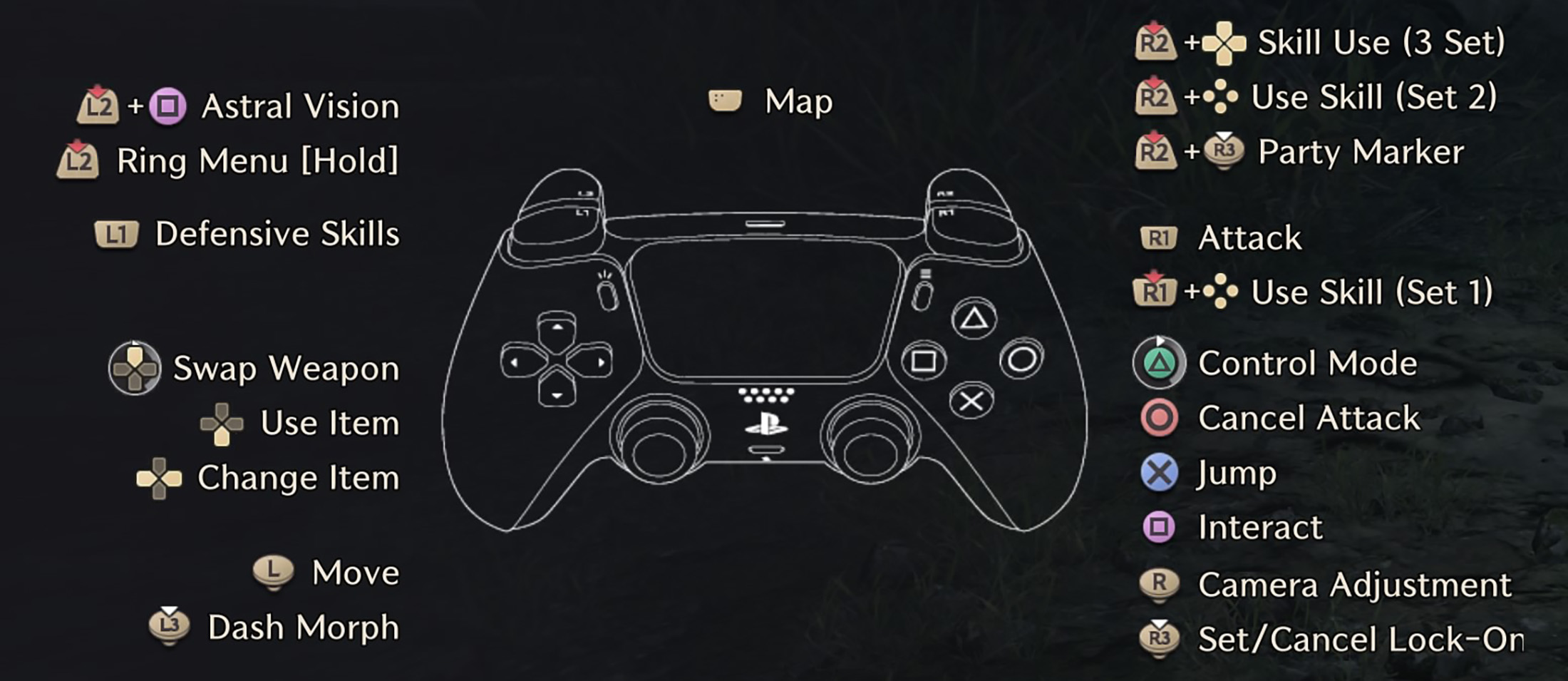
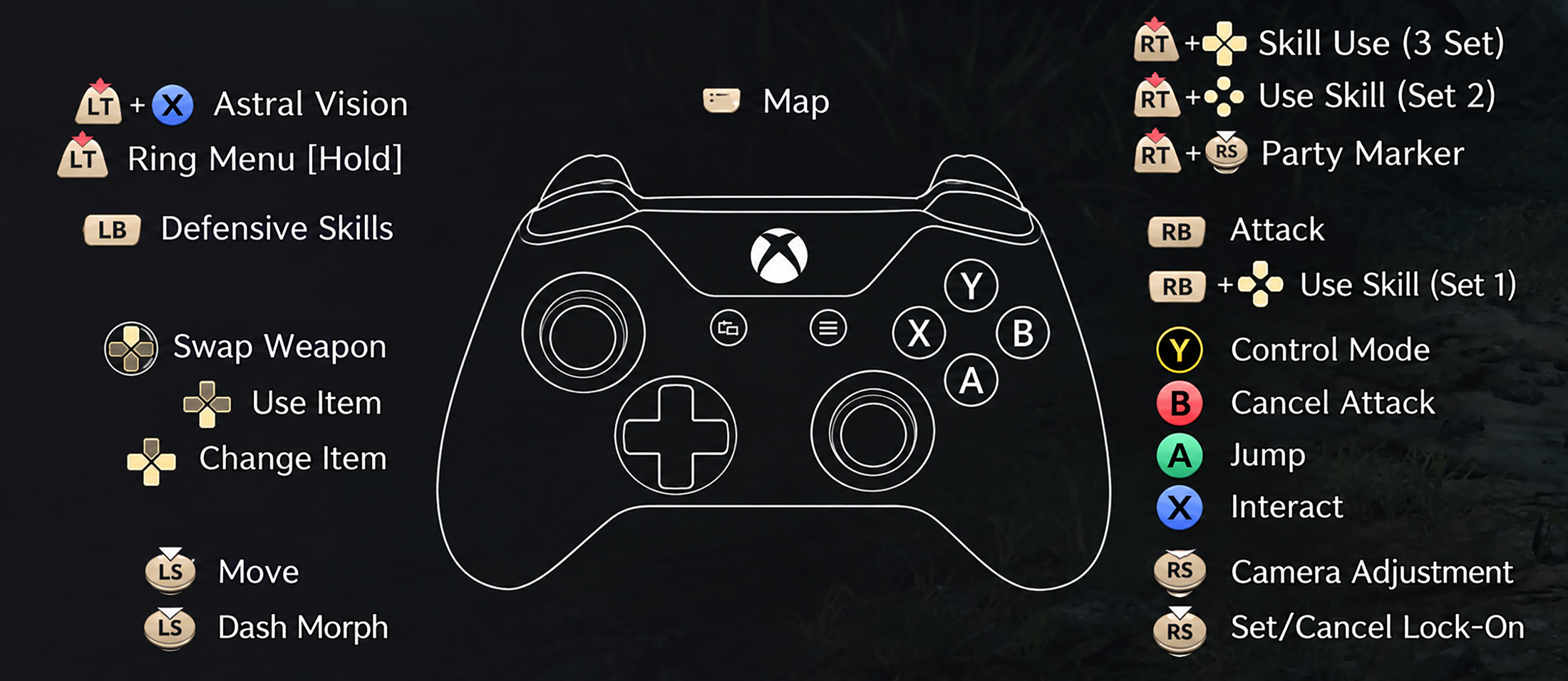
Some controller actions use a modifier or a directional input that is difficult to express as a single button. Check the matching entry in Settings before changing it. Empty binding fields in the menu mean no button is currently assigned.
Movement, Jumping and Dash Morph
Use the Left Stick to move and the Right Stick to control the camera. Cross on PlayStation or A on Xbox makes your character jump.
Click L3 to activate or cancel Dash Morph. Morphing is one of Throne and Liberty's most useful movement features, letting you travel in a transformed state instead of relying on a conventional sprint button.
The game also uses different morph forms for movement through the world. Learning when to use them makes travelling between objectives much easier.
Basic Attacks, Defense Skills and Weapon Swapping
On the PlayStation layout shown, R1 performs a basic attack and L1 activates your defensive skill. Xbox players use RB and LB respectively.
Defensive skills deserve special attention because combat is not simply about dealing damage. Recognising an incoming attack and timing your defense correctly can prevent serious damage, especially against bosses.
The Swap Weapon command uses a directional input with a controller modifier. Check the Combat section of the Bindings menu to confirm the exact combination in your layout.
How to Lock On and Change Targets
Press R3 on PlayStation or click the Right Stick on Xbox to set or cancel lock on. Circle or B cancels your current target.
To select the next target, the displayed PlayStation combination is R1 + R3. The Xbox equivalent is RB + Right Stick Click.
The Target menu also includes shortcuts for selecting your party leader's target, filtering targets in War Zones and selecting individual party members. These are particularly useful in organised group combat.
Skill Presets and Controller Shortcuts
Throne and Liberty lets you activate skills using controller modifiers rather than assigning a separate physical button to every ability.
The first skill preset uses R1 with Square, Triangle, Circle or Cross. The second uses R2 with those same four face buttons.
The screenshots also show a third skill preset controlled through R2 and directional inputs. Its availability depends on the Third Skill Set Control Mode option in Gameplay settings.
If you want to use Switch Skill Page, the game specifically notes that Third Skill Set Control Mode must be set to Switch Page First. The displayed Switch Skill Page button is Triangle.
Guardian, Support and Special Combat Controls
Summon Guardian is assigned to R1 + R2 on PlayStation, or RB + RT on Xbox.
The Support section also contains shortcuts for Call of Stars, Gemstone Skill, Quick Turn Around, Select Stellarite and removing crowd control effects.
For PvP, the displayed Counterattack command uses Triangle + Circle on PlayStation. Xbox players use Y + B.
These special commands are worth reviewing before joining competitive or demanding group content. They are much harder to remember if you only look for them in the middle of a fight.
Party Controls and Target Selection
The Target settings include Activate Party Member Selection on L2, followed by directional inputs for selecting a party member.
You can also select the same target as your party leader, making it easier to concentrate damage on one enemy instead of spreading attacks across several targets.
Other options include Vanguard Party Controls and target selection shortcuts. Some entries are unassigned in the displayed preset, so they must be configured manually if you want to use them.
Menus, Items and Convenience Shortcuts
L2 opens the Ring Menu in the displayed controller layout. The menu can be configured to remain visible while the button is held.
The Convenience section includes shortcuts for party markers, following a party member, switching quick slot sets and opening menus such as Inventory, Character Info, Skills, Codex, Crafting and Guild.
Several of these menu shortcuts are unassigned in the screenshots. You can set your own combinations if there are screens you open frequently.
How to Change Controls in Throne and Liberty
Open Settings, select the Controller tab and choose the category you want to edit. The available sections include Default, Combat, Skills, Target, Support, Convenience and Vibration.
Select an action to change its binding. The menu also provides reset options if you want to restore the original controller configuration.
For PC keyboard and mouse players, check the corresponding shortcut settings in your installed version. Avoid copying controller combinations into keyboard settings because the two input methods use different layouts.
Frequently Asked Questions
How do you lock on to enemies in Throne and Liberty?
Press R3 on PlayStation or click the Right Stick on Xbox to set or cancel lock on.
How do you use defensive skills on PS5?
Press L1. The Xbox equivalent is LB. Timing the defense correctly is important during combat.
How do you use skills with a controller?
Use R1 or R2 with the face buttons on PlayStation. On Xbox, use RB or RT with A, B, X or Y.
How do you summon a Guardian?
Press R1 + R2 on PlayStation or RB + RT on Xbox, provided your Guardian ability is available.
How do you activate Dash Morph?
Click the Left Stick, labelled L3 on PlayStation controllers.
Can you change the controller layout?
Yes. Open Settings and select Controller to customise individual bindings across combat, skills, targeting and other categories.


Comments
No comments yet. Be the first to share your thoughts!