The Mound: Omen of Cthulhu is a cooperative survival horror game where knowing your controls can make the difference between escaping with treasure and losing everything in the jungle. A misplaced attack, an accidental item drop or a missed reload can quickly turn a manageable situation into a disaster.
Developed by ACE Team and published by Nacon, the game sends up to four explorers into a dangerous jungle filled with supernatural threats, valuable discoveries and disturbing hallucinations.
This The Mound: Omen of Cthulhu controls guide covers PC, PlayStation 5 and Xbox Series X|S. It includes keyboard shortcuts, combat controls, inventory management, communication commands and all four controller presets shown in the game's settings.
The Mound: Omen of Cthulhu Controls for PC, PS5 and Xbox
The following table combines the default PC keyboard controls with PlayStation Preset A and the equivalent Xbox controller buttons.
Preset A is a useful starting point because it places aiming and attacking on the shoulder buttons while keeping interaction, reloading and inventory actions on familiar controller inputs.
| Action | PC | PS5 Preset A | Xbox Equivalent |
|---|---|---|---|
| Move | W, A, S, D | Left Stick | Left Stick |
| Look Around | Mouse | Right Stick | Right Stick |
| Run | Left Shift | Press L3 | Press LS |
| Creep | Left Ctrl | L2 | LT |
| Aim | Right Mouse Button | L1 | LB |
| Block | Check Keyboard Settings | R2 | RT |
| Attack / Use | Left Mouse Button | R1 or Cross | RB or A |
| Reload | R | Square | X |
| Interact | E | Triangle | Y |
| Drop Item | C | Circle | B |
| Melee Push | Middle Mouse Button or Space | Press R3 | Press RS |
| Mission Info | Tab | Touch Pad | View Button |
| Inventory Up | Mouse Wheel Up | D Pad Up | D Pad Up |
| Inventory Down | Mouse Wheel Down | D Pad Down | D Pad Down |
| Select First Inventory Slot | Check Keyboard Settings | D Pad Left | D Pad Left |
| Call Allies | G | D Pad Left | D Pad Left |
| Push to Talk | T | D Pad Right | D Pad Right |
| Pause | Esc | Options | Menu Button |
The PlayStation assignments come from the game's controller settings. The Xbox column translates the same layout to Xbox buttons, while PC bindings reflect the published keyboard controls.
The screenshots show D Pad Left associated with both the first inventory position and calling allies, so check the active context when using that direction.
All Four Controller Presets Explained
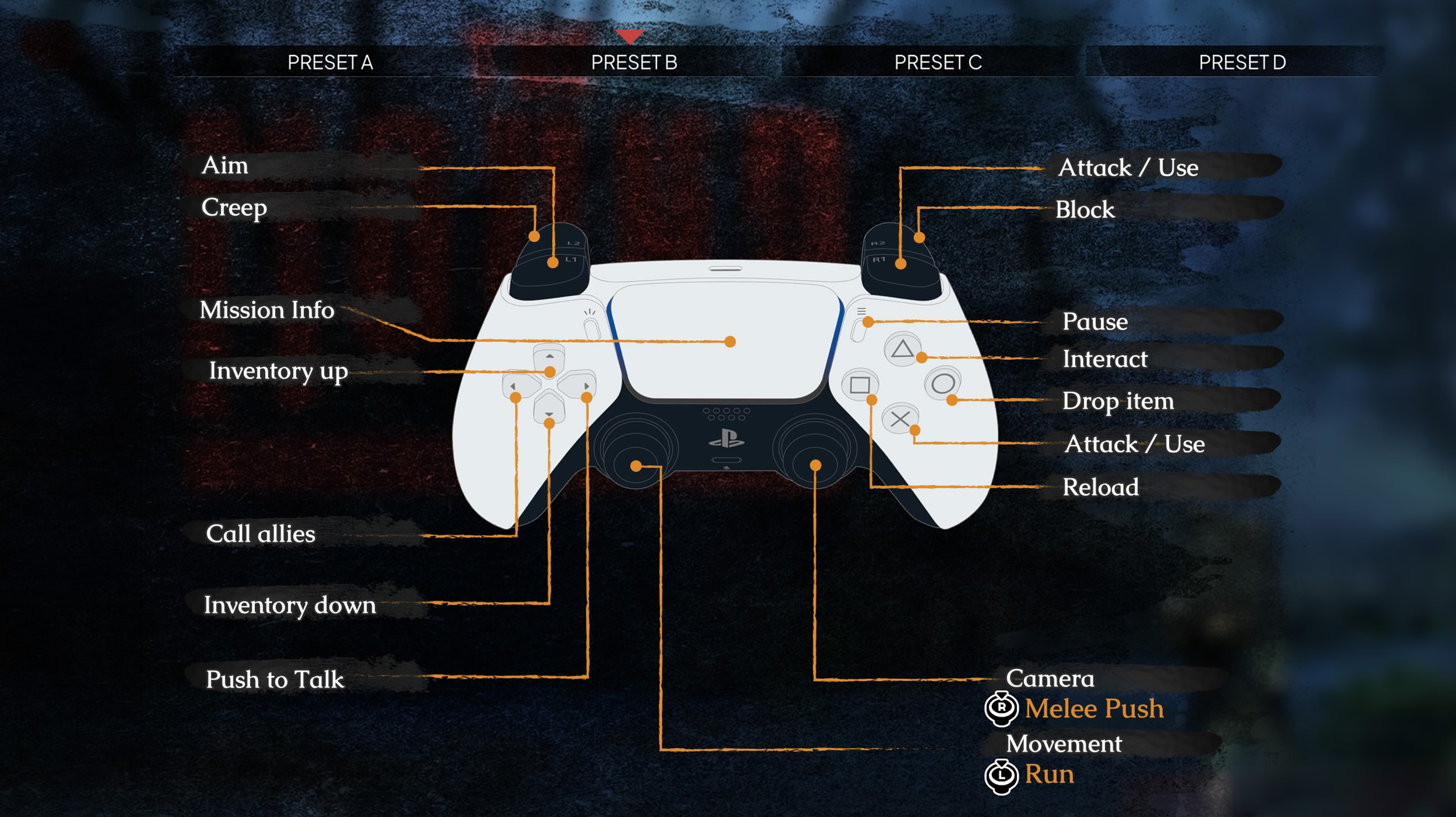
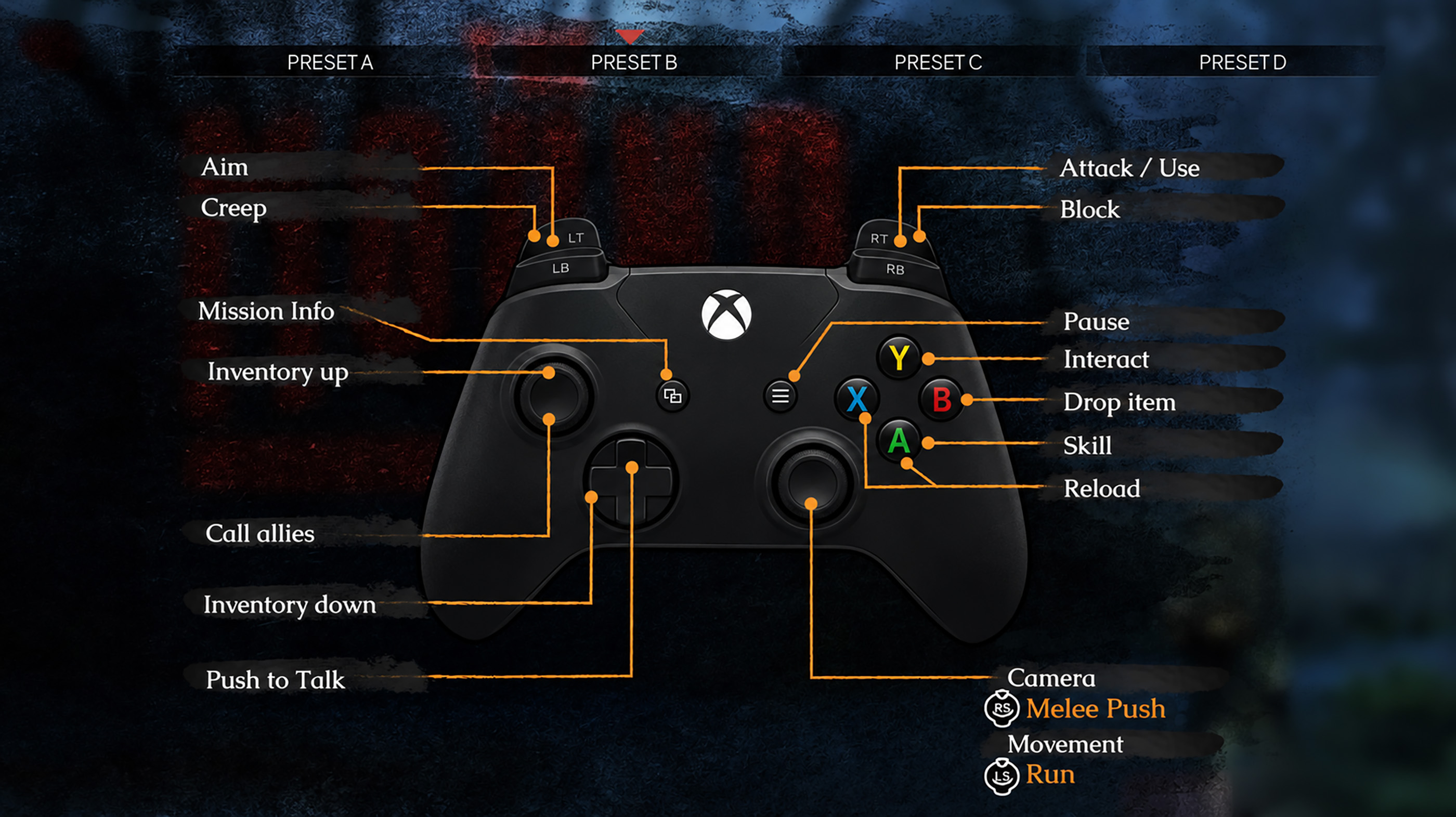
The Mound: Omen of Cthulhu includes four controller presets. Each one changes how aiming, creeping, blocking and face button actions are arranged.
The following table shows the differences between Presets A, B, C and D on PlayStation. Xbox players can use the corresponding LT, LB, RT, RB, Y, X, B and A buttons.
| Action | Preset A | Preset B | Preset C | Preset D |
|---|---|---|---|---|
| Aim | L1 | L2 | L1 | L2 |
| Creep | L2 | L1 | L2 | L1 |
| Attack / Use (Shoulder) | R1 | R2 | R1 | R2 |
| Block | R2 | R1 | R2 | R1 |
| Triangle | Interact | Interact | Reload | Reload |
| Square | Reload | Attack / Use | Attack / Use | Attack / Use |
| Circle | Drop Item | Drop Item | Drop Item | Drop Item |
| Cross | Attack / Use | Reload | Interact | Interact |
Presets A and C place aiming on L1 and creeping on L2. Presets B and D reverse those assignments.
The right shoulder buttons follow a similar pattern. Presets A and C use R1 for Attack / Use and R2 for Block, while Presets B and D use R2 for Attack / Use and R1 for Block.
The face buttons also change. Check your selected preset before starting an expedition, especially if you regularly switch between different action games.
How to Move, Run and Creep
Movement is important because careless exploration can attract dangerous creatures.
On PC, use W, A, S and D to move. Hold Left Shift to run and Left Ctrl to creep.
On PlayStation and Xbox, move with the left analog stick and press it to run.
Creep uses L2 or LT in Presets A and C. In Presets B and D, it moves to L1 or LB.
Running helps when escaping danger, but creeping is generally better when approaching an uncertain area.
How to Aim, Attack and Block
Combat requires careful timing because weapons and ammunition are limited.
On PC, use the right mouse button to aim and the left mouse button to attack.
On PlayStation, Presets A and C use L1 to aim, R1 to attack and R2 to block.
Presets B and D use L2 to aim, R2 to attack and R1 to block.
Xbox players use the equivalent shoulder buttons and triggers.
Blocking is particularly useful when a creature reaches melee range. Rather than attacking continuously, watch the enemy's movements and respond when necessary.
How to Reload Your Weapon
On PC, press R to reload.
On PlayStation, the reload button depends on your controller preset.
Preset A uses Square, Preset B uses Cross, and Presets C and D use Triangle.
The corresponding Xbox buttons are X, A and Y.
Reload whenever you have a safe opportunity. Waiting until a creature is directly in front of you can leave you exposed.
How to Use Melee Push
Melee Push is a useful emergency action when an enemy gets too close.
On PC, use the middle mouse button or Space.
On PlayStation, press the right analog stick. Xbox players press RS.
Melee Push can help create space when you are being pressured at close range.
Practise this control before entering dangerous areas so you can react quickly.
How to Manage Your Inventory
Inventory management is an important part of surviving an expedition.
On PlayStation and Xbox, D Pad Up and D Pad Down move through inventory items.
D Pad Left is also associated with selecting the first inventory position.
On PC, the mouse wheel cycles through equipped items.
You can drop an item using C on PC, Circle on PlayStation or B on Xbox.
Keep useful equipment accessible and avoid carrying unnecessary items when you need space for valuable discoveries.
How to Call Allies and Use Voice Chat
The Mound: Omen of Cthulhu is designed around cooperative exploration, so communication matters.
On PC, press G to call allies and T to use Push to Talk.
On PlayStation and Xbox, D Pad Left is used for calling allies, while D Pad Right activates Push to Talk.
Voice communication helps your group coordinate movement, warn others about creatures and decide when to retreat.
If your teammates report seeing something you cannot see, remember that the game's sanity effects can alter each player's perception.
How to Open Mission Information
Mission information helps you keep track of the expedition's objectives.
On PC, press Tab to open Mission Info.
On PlayStation, press the touch pad. The equivalent Xbox input is the View button.
Check your objectives regularly so your team knows what remains to be completed.
It is easy to become distracted by treasure and exploration, but knowing when to leave is an important part of surviving.
How to Change Controller Presets
Open the Options menu and select Controls.
At the top of the controller settings, choose Preset A, Preset B, Preset C or Preset D.
Each preset displays a controller diagram showing its assigned buttons.
Compare the layouts before selecting one. If you prefer aiming and attacking with the triggers, Preset B or D may feel more familiar.
After changing presets, practise attacking, blocking, reloading and interacting before beginning another expedition.
The Mound: Omen of Cthulhu Controls FAQ
What are the default PC controls?
The main PC controls include WASD for movement, Left Shift to run, Left Ctrl to creep, the mouse buttons for aiming and attacking, R to reload, E to interact, G to call allies and T for Push to Talk.
How do you change controller presets?
Open Options, select Controls and choose between Presets A, B, C and D.
How do you block attacks?
On PlayStation, use R2 in Presets A and C or R1 in Presets B and D. Xbox players use RT or RB respectively.
How do you reload on PlayStation?
Use Square in Preset A, Cross in Preset B or Triangle in Presets C and D.
How do you call allies?
Press G on PC or D Pad Left on a controller.
How do you use Push to Talk?
Press T on PC or D Pad Right on PlayStation and Xbox.
How do you drop an item?
Press C on PC, Circle on PlayStation or B on Xbox.
Does The Mound: Omen of Cthulhu support controllers?
Yes. The game supports controllers and provides four selectable controller presets.
Comments
No comments yet. Be the first to share your thoughts!