
Poppy Playtime Chapter 2 introduces new GrabPack puzzles, timed challenges and dangerous encounters inside the Playtime Co. factory. Knowing the controls is particularly important when you need to grab two objects quickly, complete an electrical circuit or escape from Mommy Long Legs.
This guide covers the PlayStation controller layout shown in the game's settings, the equivalent Xbox buttons and the main keyboard and mouse controls for PC.
Poppy Playtime Chapter 2 Controls for PC, PlayStation and Xbox
The PlayStation controls below are taken from the Chapter 2 settings screen. Xbox inputs use the corresponding controller buttons. Keyboard and mouse assignments can differ depending on the game version and custom settings.
| Action | PC | PlayStation | Xbox Controller |
|---|---|---|---|
| Move | W, A, S, D | Left Stick | Left Stick |
| Move Camera | Mouse | Right Stick | Right Stick |
| Fire Left GrabPack Hand | Left Mouse Button | L2 | LT |
| Fire Right GrabPack Hand | Right Mouse Button | R2 | RT |
| Jump | Space | Cross | A |
| Crouch | Ctrl | Circle | B |
| Sprint | Shift | L3 | Left Stick Click |
| Interact | E | Square | X |
| Toggle Flashlight | Check Controls Settings | R3 | Right Stick Click |
| Toggle Inventory | Check Controls Settings | Touchpad | Check Controller Layout |
| Navigation | Check Controls Settings | D Pad | D Pad |
| Pause Game | Esc | Options | Menu Button |
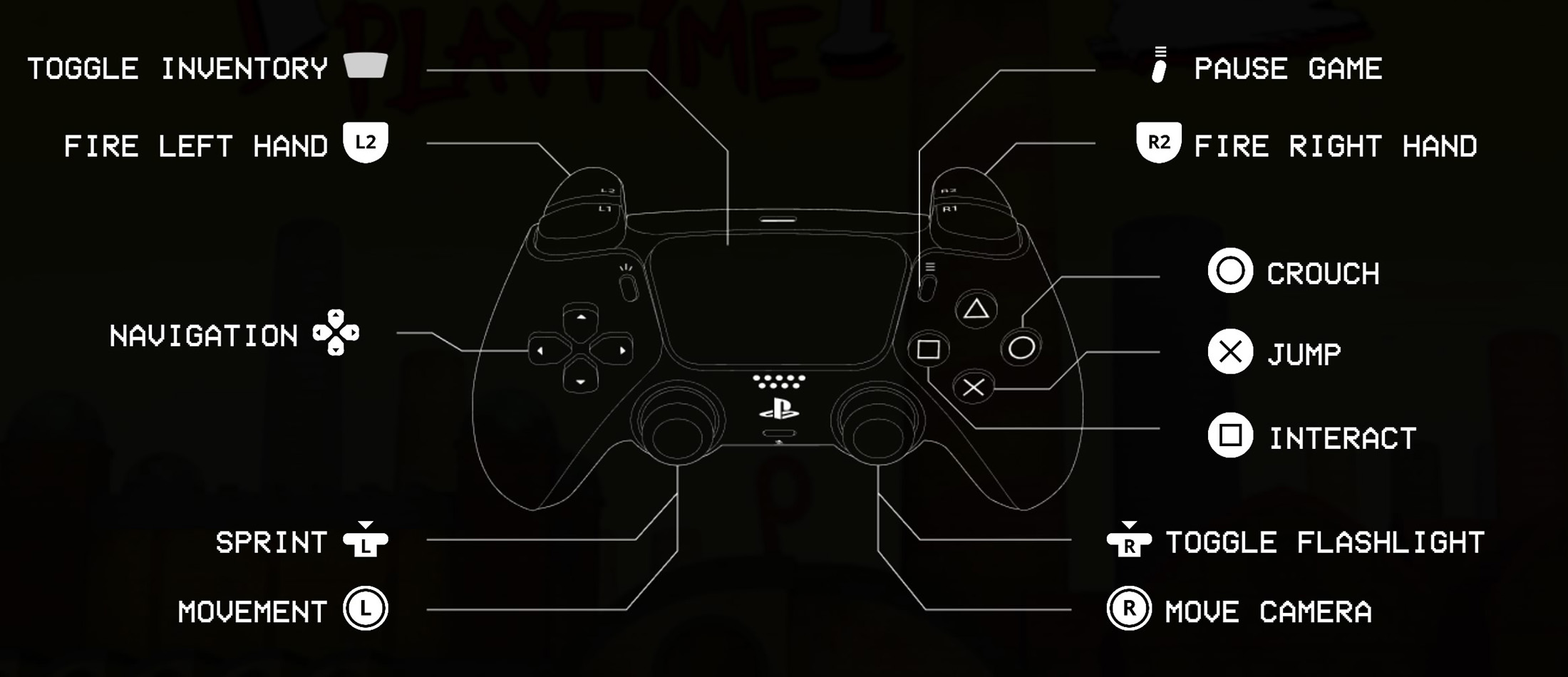
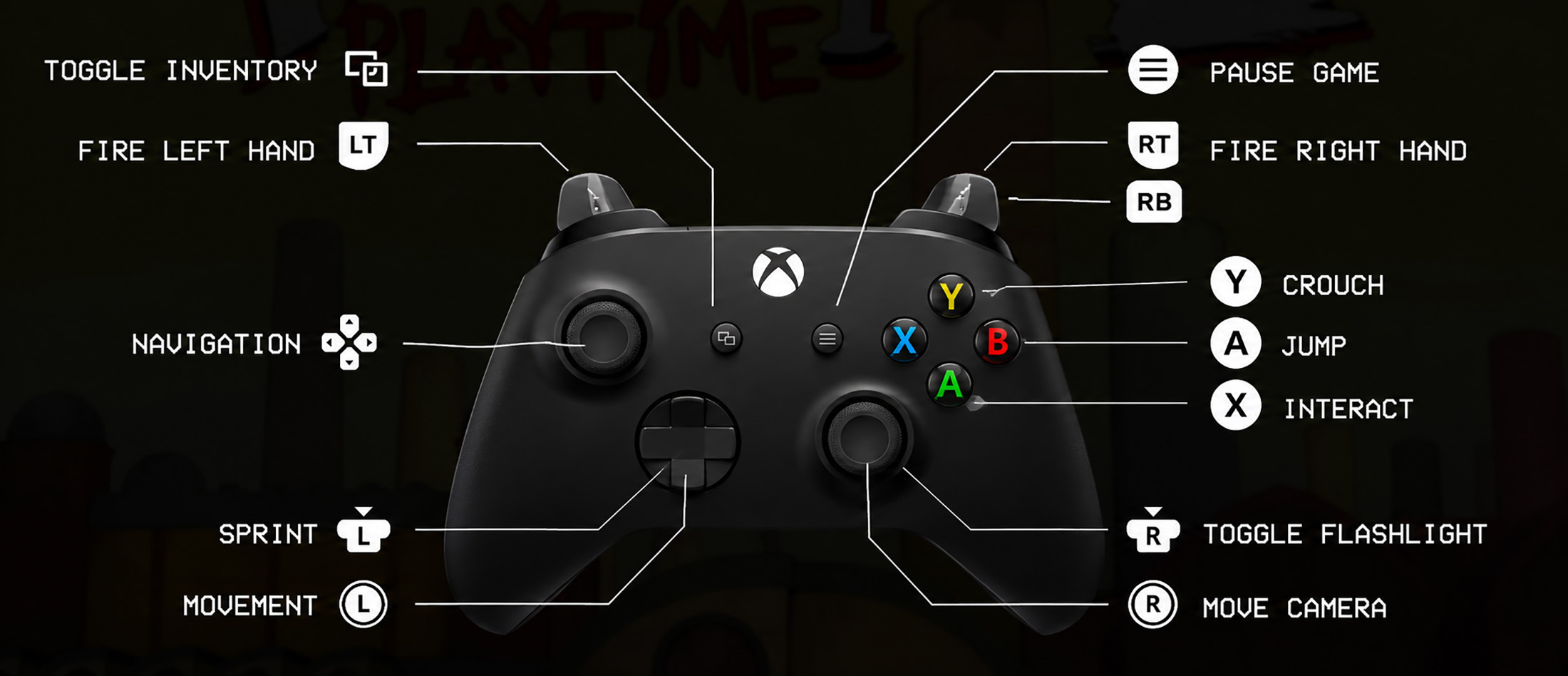
The Xbox inventory shortcut is not established by the PlayStation screenshot because the Xbox controller has no direct Touchpad equivalent. Check the Xbox version's control screen for that specific assignment.
How the GrabPack Controls Work
The GrabPack is your most important tool in Chapter 2. Its extendable hands can reach distant objects, pull handles, interact with electrical equipment and help you cross certain obstacles.
Fire the Left and Right Hands
On PC, use the left and right mouse buttons to fire the corresponding hands. On PlayStation, use L2 for the left hand and R2 for the right hand. On Xbox controllers, use LT and RT.
The hands operate separately, which matters when a puzzle requires you to hold one connection while reaching for another.
Interact With Objects
The regular interaction button is separate from firing the GrabPack hands. On PlayStation, press Square to interact. On Xbox, use X. On PC, the standard interaction key is E.
If an object does not respond to a GrabPack hand, try moving closer and checking whether it requires ordinary interaction instead.
Movement Controls During Chases
Some of the hardest moments in Chapter 2 involve moving quickly through narrow spaces while a threat follows you.
Use the Left Stick or WASD to move, and the Right Stick or mouse to control your view. Sprint is assigned to L3 on PlayStation and the Left Stick click on Xbox controllers.
Crouching is also essential. Circle on PlayStation or B on Xbox lets you enter low passages, while Cross or A is used for jumping.
When a chase begins, focus on the route ahead rather than constantly looking behind you. Spotting the next opening is usually more important than watching the enemy.
Flashlight, Inventory and Menu Controls
The flashlight is useful in dark sections of the factory. On PlayStation, press R3 to toggle it. The equivalent Xbox input is the Right Stick click.
The PlayStation Touchpad opens the inventory, while the D Pad is labelled for navigation. The Options button pauses the game.
If you change controller or keyboard settings, check the in game Controls menu before starting a difficult puzzle or chase.
Frequently Asked Questions
How do you use both GrabPack hands in Poppy Playtime Chapter 2?
Use L2 and R2 on PlayStation, LT and RT on Xbox controllers, or the left and right mouse buttons on PC. Each input controls a different hand.
How do you sprint in Poppy Playtime Chapter 2?
Press L3 on PlayStation or click the Left Stick on Xbox. On PC, use Shift with the standard keyboard layout.
How do you turn on the flashlight?
Press R3 on PlayStation or click the Right Stick on an Xbox controller.
How do you open the inventory?
On PlayStation, press the Touchpad. The Xbox inventory assignment should be checked in that version's controller settings.
Can you change the controls?
Control options depend on the platform and version. Open Settings and inspect the Controls section to see the available assignments.
Learn the Controls Before the Next Puzzle
The most useful buttons to memorise are the two GrabPack triggers, interact, sprint and crouch. Once these become familiar, Chapter 2's puzzles and escape sequences are much easier to handle without stopping to check the controls.


Comments
No comments yet. Be the first to share your thoughts!