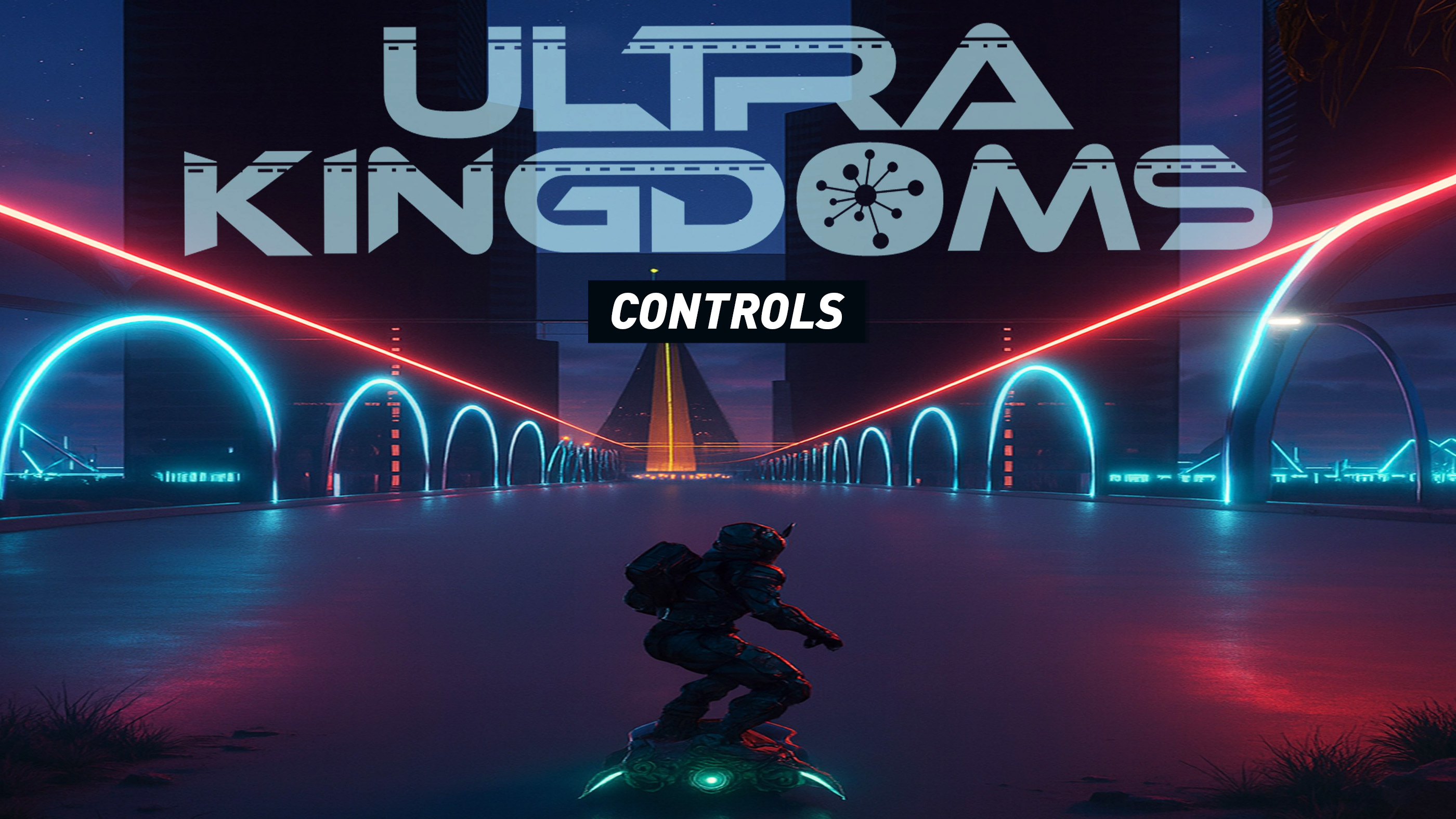
Ultra Kingdoms is unusual enough that a traditional one-screen controls list does not tell the whole story. The game mixes MMO-style exploration and social play with kingdom management, building, combat, crafting, trading and interaction with other players across its connected worlds. Your control priorities can therefore change considerably depending on whether you are travelling, fighting, working with structures or navigating one of the game's busier interfaces.
There is another important difference: Ultra Kingdoms supports full controller remapping on PS5. Stick sensitivity and inversion can also be adjusted, and the game can be played without requiring button holds, rapid button presses, simultaneous-button commands, motion input or touch controls. That makes the current in-game Controls screen more important than memorizing somebody else's custom layout.
This guide focuses on the current PS5 beta control system, how its main action groups work, how to review and remap commands, controller accessibility options and the PC version currently listed on Steam. Because Ultra Kingdoms is still actively evolving, individual bindings and contextual commands can change between builds, so check the in-game control reminder whenever a prompt differs from this guide.
Ultra Kingdoms Control Functions
| Control Function | PS5 | PC |
|---|---|---|
| Character Movement | Left Stick | Movement Keys / Configurable |
| Camera / Look | Right Stick | Mouse / Configurable |
| Primary Interaction | Contextual / Remappable | Contextual / Configurable |
| Combat Actions | Contextual / Remappable | Configurable |
| Building / Placement Actions | Contextual Controls | Contextual Controls |
| Menu Navigation | D-Pad / Sticks / Assigned Buttons | Mouse / Keyboard |
| Quick Chat | Available through Communication Interface | Communication Interface |
| Ping | Available through Communication Controls | Communication Controls |
| Pause / System Menu | Assigned Menu Control | Assigned Menu Control |
| Review Controls | Settings / Control Reminders | Settings |
Ultra Kingdoms allows extensive remapping, so a fixed face-button chart can be misleading after you change your configuration. Use the game's Controls screen to confirm the exact binding currently assigned to each action.
Movement and Camera Controls
The Left Stick handles character movement on PS5, while the Right Stick controls the camera. These are the two inputs worth adjusting first because Ultra Kingdoms places you in large environments where exploration and situational awareness matter constantly.
Adjust Camera Sensitivity Immediately
Do not spend hours compensating for a camera that feels too fast or too sluggish. Ultra Kingdoms provides stick sensitivity adjustment, so tune it until you can comfortably turn around, inspect structures and track nearby activity without overcorrecting.
Try Inverted Camera Controls if You Prefer Them
Stick inversion options are available. Players accustomed to inverted vertical camera input should change the setting before developing muscle memory around the default.
Use the Camera before Entering Busy Areas
When approaching settlements, building areas or groups of players, rotate the camera first and understand what is around you before committing to an interaction.
Interaction Controls
Ultra Kingdoms uses contextual interaction across its world. The action available at a given moment depends on what your character is facing and which activity is currently active.
Read the Prompt before Pressing
A control that performs one action during exploration may behave differently around structures, menus or other gameplay systems. The current HUD prompt is the safest reference.
Face the Correct Object
If an interaction does not activate, reposition slightly and center the intended object or interface element before trying again.
Avoid Rapid Input when a Menu Opens
One extra button press can immediately select an unintended menu option. Stop pressing as soon as the interface changes and read the new context.
Combat Controls
Ultra Kingdoms includes combat against computer-controlled enemies and can place players together in its online worlds. Combat inputs are part of the remappable controller configuration rather than a control scheme you are forced to keep permanently.
Keep Frequently Used Actions Easy to Reach
If you customize the controller, give your most common combat actions buttons that can be pressed without releasing the movement or camera sticks.
Do Not Build around Awkward Default Muscle Memory
The game explicitly supports advanced controller remapping. If a combat command consistently feels uncomfortable, change it instead of spending hours trying to adapt.
Practise before Changing Several Bindings Again
Rebinding five controls at once makes it difficult to know whether the new layout is actually better. Change the most troublesome command first, test it and continue from there.
Building and Kingdom Controls
Building and kingdom management are major parts of Ultra Kingdoms. Players can create and manage kingdoms containing structures such as castles and cities, so a portion of the control system is dedicated to navigating management interfaces and handling placement-oriented actions.
Slow Down during Placement
Building is one of the worst times to rush controller input. Confirm position and orientation before accepting a placement.
Use Camera Movement before Confirming
Inspect a proposed structure from several angles. Something that looks properly positioned from the front may interfere with nearby space when viewed from the side.
Learn the Interface Switching Logic
Management screens can contain several categories at once. Learn which controls move the cursor, change category and confirm selection instead of repeatedly backing out of the interface.
Menus and Interface Navigation
Ultra Kingdoms contains MMO, social and management systems, so menu navigation is almost as important as ordinary movement controls.
Read the Bottom and Side Prompts
Interface screens commonly display the currently valid commands. These prompts are especially important after remapping because they reflect your active configuration.
Do Not Assume Every Screen Uses the Same Actions
A management menu, chat screen and gameplay HUD can all reinterpret controller buttons differently.
Use Control Reminders
The PS5 version specifically supports control reminders, allowing you to review controls without relying on memory after taking a break from the game.
Quick Chat and Ping Controls
Ultra Kingdoms includes Quick Chat and Ping communication systems. These let players communicate basic information without relying entirely on typed text or voice chat.
Use Ping for Immediate Information
A map or world marker is usually more useful than trying to describe a location verbally during active gameplay.
Use Quick Chat for Repeated Messages
Preset communication is useful for short coordination that does not justify opening a full text interface.
Keep Communication Inputs Accessible
If you play regularly with guild members or groups, place the communication functions somewhere you can reach without interrupting movement for long.
Controller Remapping
One of Ultra Kingdoms' strongest control features on PS5 is advanced controller remapping. The game allows the controls to be fully customized rather than offering only a few preset schemes.
Start with the Most Frequent Actions
Movement-related interactions, combat and menu confirmation should receive the easiest inputs to reach.
Separate Similar Commands
Avoid placing two actions that you frequently confuse on neighboring buttons unless the arrangement makes sense to you.
Keep a Consistent Mental Layout
A useful custom scheme groups actions by purpose: movement and traversal in one area, combat in another and management or communication on less frequently pressed buttons.
Playing without Holding Buttons
Ultra Kingdoms can be configured so gameplay does not require holding buttons down. This can reduce fatigue and is also useful for players who simply prefer toggle-style commands.
Try Toggle Behavior during Long Sessions
If a frequently used command becomes uncomfortable after extended play, check whether a non-hold alternative is available.
Do Not Assume Accessibility Options Are Only for Accessibility
Hold-versus-toggle settings can make a game more comfortable for anyone, especially when repeatedly navigating large spaces or management interfaces.
Playing without Rapid Button Presses
The PS5 release is designed so gameplay and menus can be used without requiring rapid button presses.
This means you should not need to mash a control simply because you cannot perform an action quickly enough. If a sequence feels unnecessarily demanding, review the relevant gameplay and accessibility options.
Playing without Simultaneous Inputs
Ultra Kingdoms also supports play without requiring multiple buttons to be pressed or held simultaneously.
Use This when Customizing
If multi-button shortcuts are uncomfortable, build a layout around direct individual commands where the settings permit it.
Reduce Accidental Commands
Removing unnecessary button combinations can be useful even if hand comfort is not an issue, particularly on a control scheme with many MMO functions.
Motion, Touch and Trigger Options
Ultra Kingdoms can be played without motion controls, without touch input and without adaptive trigger resistance.
Disable Adaptive Triggers if Combat Feels Heavy
Players who prefer a lighter trigger pull can turn the effect off instead of fighting the controller resistance.
Disable Vibration if It Distracts You
Controller vibration is optional. Turning it off can also be useful during long sessions or when trying to focus on visual information.
Practice Mode
Ultra Kingdoms includes a Practice Mode intended to provide a consequence-free place to learn how to play.
Test Custom Controls Here
Practice Mode is the ideal place to decide whether a remapped button actually feels better before taking the layout into normal play.
Learn One System at a Time
Practice movement and camera first, then interactions, combat and more specialized controls instead of trying to memorize everything simultaneously.
Control and Tutorial Reminders
Both control reminders and tutorial reminders are available. Use them whenever you return after an extended break or encounter a system you have not used recently.
Review Instead of Guessing
Guessing at controls inside a complicated interface can create more confusion. A ten-second reminder is faster than repeatedly pressing the wrong button.
PC Controls
Ultra Kingdoms also has a Steam version listed for PC, although its Steam release is still marked as coming soon. The PC listing describes the same MMO foundation: kingdom construction and management, exploration, combat, crafting, trading and real-time interaction with other players.
Because the PC build is still in development, treat any beta keyboard mapping as provisional. Configure your keyboard and mouse around the live build rather than relying on an old beta screenshot.
Keep Movement near WASD
For a large 3D MMO environment, keeping movement and the most common interaction controls close together reduces unnecessary hand movement.
Use the Mouse for Camera and Interface Precision
Mouse input is particularly useful when management screens contain many selectable elements.
Re-check Bindings after Updates
During an evolving beta or Early Access period, always check controls after a major update if something suddenly behaves differently.
Frequently Asked Questions
Can you remap controls in Ultra Kingdoms?
Yes. The PS5 version supports advanced controller remapping and allows the control layout to be fully customized.
Can you adjust stick sensitivity?
Yes. Stick sensitivity options are available.
Can you invert the camera?
Yes. Stick inversion options are provided.
Do you need motion controls?
No. Ultra Kingdoms can be played without motion controls.
Do you need the DualSense touchpad?
No. The game can be played without touch controls.
Can adaptive triggers be disabled?
Yes. Adaptive trigger resistance is optional.
Can vibration be disabled?
Yes. Controller vibration and haptic feedback can be turned off.
Does Ultra Kingdoms require button mashing?
No. The PS5 accessibility specification states that the game can be played without rapid button presses.
Can I play without holding buttons?
Yes. The game supports play without requiring button holds.
Does Ultra Kingdoms have control reminders?
Yes. You can review the controls from within the game.
Is there a practice mode?
Yes. A consequence-free Practice Mode is available for learning gameplay.
Does Ultra Kingdoms have Quick Chat?
Yes. Quick Chat and Ping communication are supported.
How many players can be online on PS5?
The current PlayStation Store listing supports online sessions with up to 99 players.
Is Ultra Kingdoms on PS5?
Yes. The PS5 beta launched in July 2026 and is PS5 Pro Enhanced.
Is Ultra Kingdoms on PC?
A Steam version is listed, but the public Steam store currently marks it as coming soon.
Do not memorize an outdated Ultra Kingdoms button chart when the game gives you something better: a fully remappable scheme with built-in control reminders. Get movement and camera sensitivity right first, then place your most common combat, interaction and building commands where they feel natural.
The other major advantage is flexibility. Button holds, rapid presses, simultaneous-button inputs, motion, touch, vibration and adaptive triggers can all be avoided. Use those options to make the controller fit the way you play rather than forcing yourself to adapt to an uncomfortable configuration.
See our Ultra Kingdoms Tips and Tricks Guide for beginner progression, kingdom building, exploration, multiplayer, crafting, trading and control-setup advice.
Comments
No comments yet. Be the first to share your thoughts!