Tricky Doors keeps its controls deliberately simple because the real challenge is not mechanical execution; it is noticing what matters. Every episode is built around inspecting scenes, collecting unusual objects, combining clues and solving layered escape-room puzzles. That means the most important inputs are the ones that let you move the cursor accurately, cycle through inventory items, interact with hotspots and quickly back out when you are examining the wrong thing.
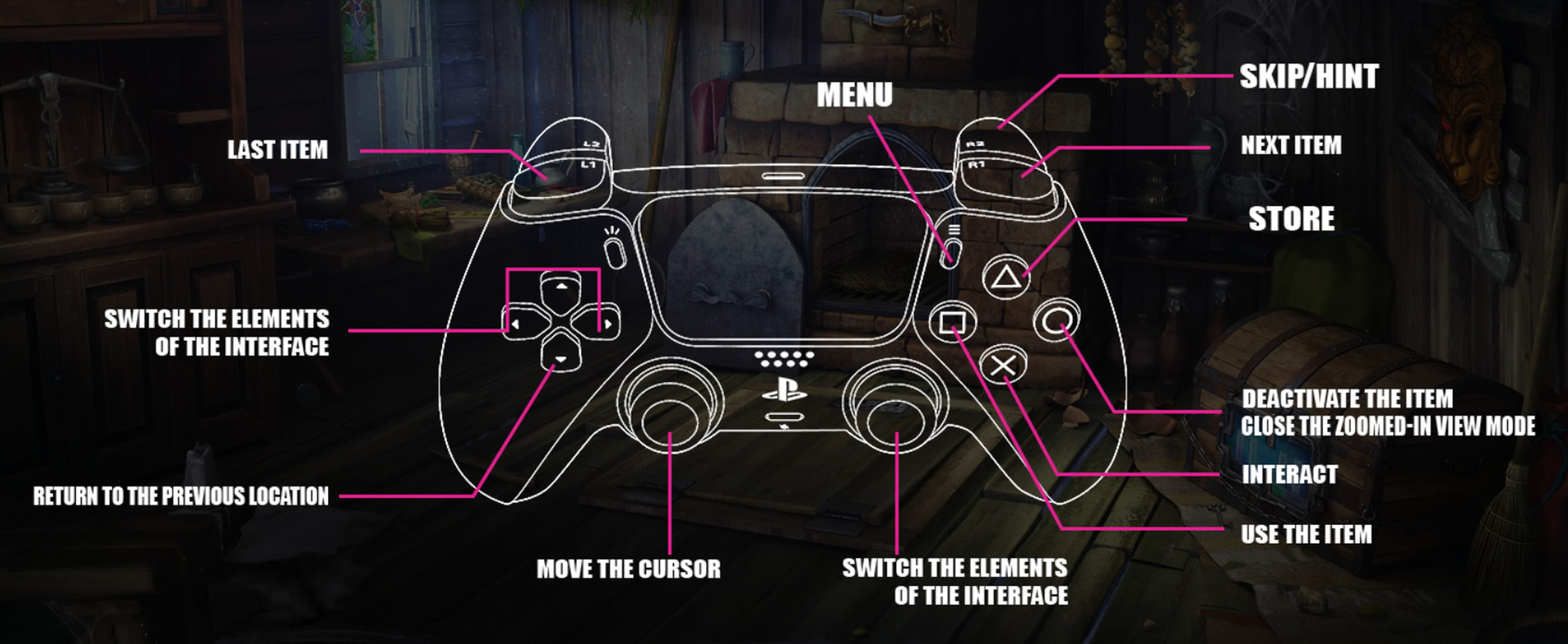
The controller layout above shows the default PlayStation setup. The Left Stick moves the cursor, the Right Stick switches interface elements, Cross interacts, Square uses the selected inventory item, Circle deactivates an item or closes a zoomed-in view, Triangle opens the Store, L1 and R1 cycle through inventory items, L2 returns to the previous location and R2 activates Skip or Hint when available.
This guide covers the default PlayStation controls shown in-game, matching Xbox and Nintendo Switch buttons, inventory navigation, zoomed-in object views, item use, Hint and Skip commands, interface switching and the way mouse controls work on PC. Since Tricky Doors is a point-and-click adventure, some mini-games temporarily reinterpret the normal controls; always follow the prompt shown inside that puzzle when it differs from the general layout.
Default Controller Controls
| Action | PlayStation | Xbox | Nintendo Switch |
|---|---|---|---|
| Move Cursor | Left Stick | Left Stick | Left Stick |
| Switch Interface Elements | Right Stick | Right Stick | Right Stick |
| Interact / Select | Cross | A | B |
| Use Selected Item | Square | X | Y |
| Deactivate Item / Close Zoomed View | Circle | B | A |
| Store | Triangle | Y | X |
| Previous Inventory Item | L1 | LB | L |
| Next Inventory Item | R1 | RB | R |
| Return to Previous Location | L2 | LT | ZL |
| Skip / Hint | R2 | RT | ZR |
| Menu | Options | Menu Button | + |
| Close | Circle | B | A |
Nintendo Switch face-button labels are converted by physical button position. Some releases may show platform-specific prompts differently, so the current in-game prompt should always take priority.
PC Mouse Controls
Tricky Doors is fundamentally a point-and-click adventure, and the PC version is designed around direct cursor interaction. Move the mouse to inspect the scene and click interactive objects, inventory items and puzzle elements. The exact presentation changes between normal exploration and individual mini-games, but the principle remains the same: point at the element you want and activate it.
| PC Action | Mouse / Keyboard |
|---|---|
| Move Cursor | Move Mouse |
| Select / Interact | Left Click |
| Select Inventory Item | Left Click Item |
| Use Item on Hotspot | Select Item, then Left Click Target |
| Navigate Back | Click Back Arrow / Interface Control |
| Open Menu | Menu / Esc depending on version |
PC is the most direct way to play because the game originated around point-and-click interaction. Controller support remains fully functional, including on Steam Deck, where the complete game can be played with the default controller configuration.
Moving the Cursor
Use the Left Stick to move the on-screen cursor around a location.
This is the most important controller input in Tricky Doors. Every room contains small hotspots, puzzle components and collectible items, so accurate cursor placement matters more than moving quickly.
Scan the Scene in a Pattern
Instead of moving the cursor randomly, check the room from left to right or top to bottom. A deliberate sweep makes tiny handles, loose objects and unusual textures much easier to spot.
Pause over Suspicious Objects
If the cursor changes or an interaction becomes available, investigate before moving on. Some important objects are intentionally blended into detailed backgrounds.
Check Scene Edges
Interactive elements frequently sit near shelves, table corners, doors, windows and the edges of the visible screen.
Switching Interface Elements
Use the Right Stick to switch between selectable interface elements.
This is especially useful when the scene contains several nearby interactive targets or when a mini-game presents multiple controls close together.
Use It when Cursor Selection Feels Awkward
If two hotspots overlap visually, cycling interface focus can be easier than trying to position the cursor with pixel-level precision.
Remember Mini-Games Can Reuse the Stick
Individual puzzles may assign movement or rotation directly to the sticks. Read the temporary prompt instead of assuming the normal interface function still applies.
Interacting with Objects
Press Cross on PlayStation, A on Xbox or B on Nintendo Switch to interact with the highlighted object.
This command opens containers, collects items, enters close-up views, activates puzzle elements and confirms many contextual actions.
Interact with Everything Once
Tricky Doors rarely punishes experimentation. If an object looks unusual, inspect it. Even an interaction that does not immediately solve anything may reveal a missing piece or a clue you need later.
Revisit Objects after Finding New Items
A locked panel that did nothing earlier may become useful after you find a screwdriver, handle, key, rope or another contextual item.
Zoomed Views Often Hide Multiple Hotspots
Entering a close-up does not necessarily mean there is only one thing to do there. Move the cursor around the entire enlarged object before backing out.
Using Inventory Items
Press Square on PlayStation, X on Xbox or Y on Nintendo Switch to use the currently selected inventory item where appropriate.
Items in Tricky Doors are usually contextual. A knife may cut one material, a tool may open a mechanism and two separate objects may sometimes need to be combined before either becomes useful.
Select the Item before Targeting the Scene
When an object clearly requires a tool, cycle to the relevant inventory item first and then move the cursor to the target.
Try Logical Combinations
If an item is incomplete, look for something that could naturally attach to it. Handles, rope, blades, hooks and containers are frequently only one part of a larger solution.
Do Not Brute-Force Every Item
Trying every inventory object on every hotspot works eventually, but it makes puzzles far less satisfying. Read the shape and purpose of the object first.
Previous and Next Inventory Item
Press L1 / LB / L for the previous item and R1 / RB / R for the next item.
Use Shoulder Buttons instead of Returning to Inventory
When you already know the correct tool is somewhere in your current item bar, cycling with the shoulder buttons is much faster than repeatedly moving the cursor away from the puzzle.
Check Every New Item Once
After collecting something unfamiliar, cycle to it and inspect its icon. The item's shape is often an intentional clue about where it belongs.
Deactivating an Item
Press Circle on PlayStation, B on Xbox or A on Switch to deactivate the currently selected item.
Cancel Wrong Tools Immediately
If you selected a key but suddenly notice the puzzle requires a brush, deactivate the key rather than carrying the wrong item through several interactions.
Use the Same Button to Leave Close-Ups
Circle or its platform equivalent also closes many zoomed-in views, making it the quickest way to return to the larger room.
Returning to the Previous Location
Press L2 on PlayStation, LT on Xbox or ZL on Switch to return to the previous location.
Use It to Navigate Multi-Room Episodes Quickly
Many episodes eventually open several connected areas. Once you remember which item belongs in another room, the back shortcut saves considerable cursor movement.
Do Not Leave before Checking the Whole Close-Up
Some puzzle views contain more than one collectible or clue. Search the edges before backing out.
Using Hints
Press R2 on PlayStation, RT on Xbox or ZR on Switch to activate the available Hint command.
Hints can point you toward the next relevant interaction when you have lost track of the puzzle chain.
Use Hints to Find the Next Step, Not the Whole Solution
If you are stuck, a single hint usually provides enough direction to resume solving without completely spoiling the puzzle.
Re-check Your Inventory First
Many apparent dead ends come from forgetting an object already collected several minutes earlier.
Search Other Rooms before Spending a Hint
A puzzle may simply require an item from another location rather than a clever solution in the room you are currently examining.
Skipping Mini-Games
The same R2 / RT / ZR shortcut can provide a Skip option where the game allows one.
Try the Puzzle before Skipping
Most mini-games teach their rules through their visual design, and several are much easier once you understand the goal rather than immediately searching for a solution.
Skip Only if the Puzzle Stops Being Fun
There is little value in spending twenty minutes repeating a mechanical puzzle you already understand but simply do not enjoy.
Opening the Store
Press Triangle on PlayStation, Y on Xbox or X on Nintendo Switch to open the Store where supported.
The game's coin systems and store presentation can vary between platform releases and versions. This shortcut does not affect normal puzzle progression.
Opening the Menu
Press Options on PlayStation, the Menu Button on Xbox or + on Nintendo Switch.
Use the menu for settings, episode navigation and other system-level options available in your version of the game.
How Inventory Puzzles Work
A large part of Tricky Doors is not simply finding objects but recognizing when several objects belong together.
Inspect Incomplete Objects
A stick may need rope, a mechanism may need a handle and an empty container may need a specific substance before it becomes useful.
Think about Real-World Function
Most combinations follow recognizable logic. If you need to cut, fasten, light, clean, pry, measure or transport something, look for an item that serves that purpose.
Keep Unused Items in Mind
If an object has remained in your inventory for a long time, the game is probably preparing a later interaction for it.
Mini-Game Controls
Tricky Doors contains many different mini-games: rotating mechanisms, tile puzzles, sliders, pattern matching, memory puzzles, pipes, switches and object-placement challenges.
Their exact inputs change with the puzzle, but the normal interaction model remains straightforward: move focus with the stick or cursor, select with the primary interaction button and back out with the cancel button.
Find the Goal before Moving Anything
Before touching a sliding or rotation puzzle, identify what the finished state is supposed to look like.
Use Fixed Pieces as Anchors
When some elements cannot move, treat them as reference points and build the solution outward from them.
Reset Mentally before Resetting the Puzzle
When a board becomes chaotic, stop moving pieces and work out which part is still correct before starting over.
Frequently Asked Questions
How do you interact in Tricky Doors?
Press Cross on PlayStation, A on Xbox or B on Nintendo Switch while the cursor is on an interactive hotspot.
How do you use an inventory item?
Select the item, move the cursor to the appropriate object and use Square on PlayStation, X on Xbox or Y on Switch when prompted.
How do you switch inventory items?
Use L1 and R1 on PlayStation, LB and RB on Xbox or L and R on Nintendo Switch.
How do you go back?
Press L2 on PlayStation, LT on Xbox or ZL on Switch to return to the previous location. Circle/B/A also closes many zoomed-in views.
How do you use a hint?
Press R2, RT or ZR when the Hint option is available.
Can you skip puzzles?
Some mini-games provide a Skip option through the same Hint/Skip system.
What does the Right Stick do?
It switches between interface elements and may receive puzzle-specific functions inside certain mini-games.
How do you move the cursor?
Use the Left Stick on controller or the mouse on PC.
Does Tricky Doors support controllers on PC?
Yes. The Steam version supports controller play, and all functionality is accessible using the default Steam Deck controller configuration.
What kind of game is Tricky Doors?
It is a point-and-click escape-room adventure built around hidden objects, inventory puzzles, environmental clues and mini-games.
Final Control Advice
The most useful Tricky Doors habit is learning three controller inputs immediately: Left Stick to move the cursor, Cross/A/B to interact and Circle/B/A to back out. Once those feel automatic, add L1 and R1 for fast inventory cycling and R2 for the Hint system.
Do not rush cursor movement. The game's artwork is deliberately dense, and many progression items are hidden among shelves, furniture, machinery and decorations. A slow systematic scan usually saves more time than rapidly clicking everything.
See our Tricky Doors Tips and Tricks Guide for spoiler-light puzzle strategies, hidden-object advice, inventory management, clue reading and mini-game techniques.
Comments
No comments yet. Be the first to share your thoughts!