Once Human packs shooting, survival systems, Deviations, vehicles, building, gathering and exploration onto one controller, so the default layout has more contextual commands than a typical third person shooter. The good news is that most actions follow familiar PlayStation conventions once you understand which buttons have tap and hold functions.
On the standard PlayStation layout, L2 handles aiming, R2 fires your weapon, Square reloads, Cross jumps and Circle rolls or crouches. Triangle is particularly important because a quick press switches weapons while holding it opens the weapon wheel.
The controls below follow the current PlayStation controller layout shown in the game. Once Human supports custom controller bindings and several presets, so your buttons can differ if you have edited the layout.
Once Human PlayStation Controls
| Action | PlayStation |
|---|---|
| Move | Left Stick |
| Move Camera | Right Stick |
| Sprint / Keep Sprinting | L3 |
| Jump / Climb Over / Glide | Cross |
| Roll | Circle |
| Crouch | Hold Circle |
| Aim | L2 |
| Toggle OTS | Hold L2 |
| Fire | R2 |
| Melee Light Attack | R2 when using a melee weapon |
| Heavy Melee | L2 when using a melee weapon |
| Reload | Square |
| Quick Melee | R3 |
| Quick Melee Heavy Strike | Hold R3 |
| Quick Switch Weapon | Triangle |
| Weapon Wheel | Hold Triangle |
| Use Item | L1 |
| Item Wheel | Hold L1 |
| Quick Pin | D Pad Up |
| Switch Camera | Hold D Pad Up |
| Expressions Wheel | Hold assigned D Pad shortcut |
| Spacetime | Assigned D Pad shortcut |
| Quick Functions | Assigned D Pad shortcut |
| Function Wheel | Hold Quick Functions shortcut |
| Map | Touchpad |
| Chat | Hold Touchpad |
| Menu | Options Button |
| Backpack | Hold Options Button |
| Deviation Battle Skill | R1 + Square |
| Deviation Ultimate | R1 + Triangle |
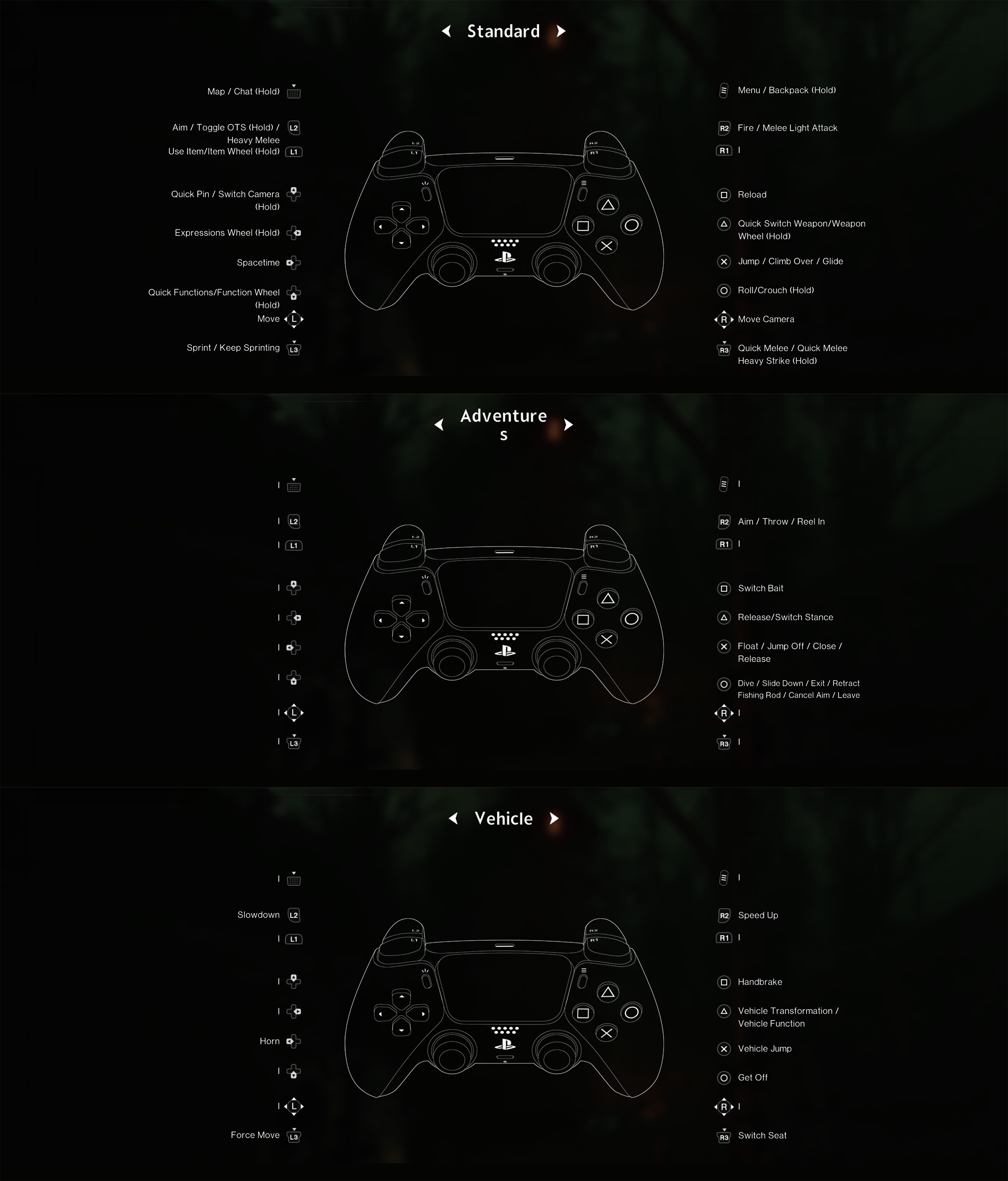
Some D Pad shortcuts can change with your preset or customized controller mapping. Check Settings, Controller and Button Details if one of these commands appears in a different position on your setup.
Movement, Sprinting and Traversal
Use the left stick for movement and press L3 to sprint. Cross is your general traversal button, covering jumping, climbing over suitable obstacles and gliding when the current situation allows it.
Do Not Sprint Everywhere
Sprinting is excellent for crossing open ground, but entering an unfamiliar stronghold at full speed can pull several enemies at once. Slow down when approaching structures, listen for enemies and identify cover before starting a fight.
Use Climb Over Instead of Fighting the Terrain
Cross is contextual. When you approach a low obstacle, ledge or suitable piece of scenery, it can move your character over it rather than performing a simple vertical jump.
Save Gliding for Useful Drops
Gliding can make descents much faster and safer. Use elevation to cross difficult ground, reach lower rooftops or avoid wasting time following a winding path.
How to Aim and Shoot
Hold L2 to aim and use R2 to fire. The right stick controls your aim while the left stick lets you strafe and reposition.
Aim for Weak Points
Many enemies have vulnerable areas that reward accurate fire. Instead of emptying a magazine into the center of every target, identify where your damage numbers improve and concentrate shots there.
Use Cover without Becoming Stationary
Once Human is much easier when enemies have to adjust to your position. Fire from an angle, move while reloading and avoid standing in one exposed spot during longer fights.
OTS Camera
Holding L2 can also access the Toggle OTS function depending on your current state and controller configuration.
OTS refers to the over the shoulder aiming perspective. Switching the camera side can improve visibility when shooting around certain pieces of cover or approaching an enemy from an awkward angle.
Reloading
Press Square to reload your equipped firearm.
Reload before the Next Enemy Arrives
Do not wait until your magazine is empty during a boss phase or crowded encounter. Use quiet moments to top up so you are not caught in a reload animation when an enemy rushes you.
Check Your Ammunition before Leaving Base
Once Human is also a survival game. A powerful gun is not useful if you arrive at a stronghold carrying only a few magazines worth of ammunition.
Switching Weapons
Press Triangle to quickly change weapons. Hold Triangle to open the weapon wheel and select a specific weapon.
Use the Quick Switch during Combat
A single press is much faster when you simply need your other equipped weapon. Save the full wheel for situations where you need to make a deliberate selection.
Carry Weapons with Different Jobs
Two weapons that solve the same problem can leave you exposed elsewhere. A close range option paired with something accurate at distance usually gives you more flexibility.
Melee Controls
When a melee weapon is equipped, R2 performs a light melee attack and L2 is used for heavy melee functionality. You can also press R3 for Quick Melee or hold R3 for a heavier quick strike.
Use Melee to Save Ammunition
Weak enemies do not always deserve a full magazine. When it is safe to close the distance, melee attacks help preserve ammunition for bosses, elites and difficult strongholds.
Do Not Trade Hits with Dangerous Enemies
Melee is not an invitation to stand still. Strike, reposition and use Circle to roll away when the enemy begins a strong attack.
Rolling and Crouching
Press Circle to roll and hold Circle to crouch.
These two actions share a button but solve very different problems. Rolling provides quick evasive movement during combat, while crouching is better for controlled movement, stealthier approaches and positioning behind low cover.
Roll Sideways More Often
Against projectiles and charging enemies, moving sideways usually creates more separation than rolling directly backward along the attack path.
Using Items
Press L1 to use the current item. Hold L1 to open the Item Wheel.
Prepare Consumables before a Difficult Fight
Do not wait until your health is low to work out where a healing item sits on the wheel. Set up the items you expect to need before entering a boss arena or high level zone.
Deviation Controls
Deviations are one of Once Human's defining systems. Combat Deviations can assist in battle and provide specialized skills rather than functioning as passive collectibles.
| Deviation Action | PlayStation |
|---|---|
| Deviation Battle Skill | R1 + Square |
| Deviation Ultimate | R1 + Triangle |
Match the Deviation to Your Build
Do not choose one only because it looks powerful. A Deviation that complements your weapon effects, crowd control needs or boss strategy can contribute much more than one that duplicates something your build already handles well.
Use Skills before the Fight Is Nearly Finished
A cooldown that remains unused throughout an encounter gives you no value. Activate your combat Deviation when it can control a dangerous group, create a damage opening or remove pressure from you.
Map and Chat
Press the touchpad to open the map. Holding the touchpad accesses chat with the standard controller setup.
Mark Destinations before Leaving
Once Human's world contains settlements, teleportation points, resource zones, bosses and activities. Setting your destination first is much more efficient than repeatedly opening the map while traveling.
Vehicle Controls
| Vehicle Action | PlayStation |
|---|---|
| Steer | Left Stick |
| Camera | Right Stick |
| Speed Up | R2 |
| Slow Down | L2 |
| Handbrake | Square |
| Vehicle Transformation / Vehicle Function | Triangle |
| Vehicle Jump | Cross |
| Get Off | Circle |
| Force Move | L3 |
| Switch Seat | R3 |
| Horn | Assigned D Pad shortcut |
| Headlights | R1 + assigned D Pad shortcut |
Driving
Use R2 to speed up and L2 to slow down. Steering remains on the left stick, so anyone familiar with modern driving games should adapt quickly.
Do Not Hold Full Speed on Rough Ground
Roads are faster because the vehicle remains stable. Cutting straight through rocks, trees and steep terrain can lose more time than following a slightly longer road.
Use the Handbrake for Sharp Corrections
Square activates the handbrake. It is useful for tighter changes of direction, but excessive use can kill your momentum.
Switch Seats When the Situation Calls for It
Press R3 to change seat in supported vehicles. This becomes more important when traveling with other players or using vehicles with multiple functional positions.
Vehicle Transformation and Functions
Triangle activates Vehicle Transformation or another vehicle specific function when supported.
The command is contextual, so its effect depends on the vehicle you are currently operating rather than providing one universal action.
Adventure and Fishing Controls
Once Human also changes several buttons during activities such as fishing and other contextual adventure mechanics.
| Contextual Action | PlayStation |
|---|---|
| Aim / Throw / Reel In | R2 |
| Switch Bait | Square |
| Release / Switch Stance | Triangle |
| Float / Jump Off / Close / Release | Cross |
| Dive / Slide Down / Exit / Retract Fishing Rod / Cancel Aim / Leave | Circle |
These commands are intentionally contextual. Read the prompt beside the action rather than assuming that a face button always performs its normal combat function.
How to Fish with a Controller
During fishing, R2 handles aiming, casting and reeling depending on the current phase. Square switches bait, while Circle can retract the fishing rod or cancel your current action.
Use the Prompt, Not Muscle Memory
Fishing temporarily reuses buttons normally associated with combat. Watch the current command on screen before pressing anything, especially when you are trying to cancel a cast or change bait.
How to Change Controller Buttons
Open Settings, enter Controller and choose Button Details or the controller configuration options. Once Human supports custom controller bindings, allowing you to create a setup that better matches the way you play.
The game also provides controller presets. If your custom layout becomes uncomfortable, switch back to a preset and rebuild from there.
Keep Combat Actions Easy to Reach
Aim, fire, reload, roll, weapon switching and item use should remain accessible without forcing you to remove your thumbs from movement for long periods.
Check Vehicle Controls after Remapping
A layout that feels excellent during shooting may become awkward while driving or fishing. Test the other control categories before settling on a major remap.
Controller Sensitivity and Motion Settings
Once Human includes controller configuration for stick behavior and aiming preferences. If your crosshair feels too slow, too twitchy or prone to drifting, adjust sensitivity and deadzone settings before assuming the problem is your aim.
Change One Setting at a Time
Large changes to several sensitivity values at once make it difficult to identify what actually improved the controls. Adjust one value, test it in a safe area and continue from there.
Frequently Asked Questions
How do you shoot in Once Human on PS5?
Hold L2 to aim and press R2 to fire.
How do you reload?
Press Square.
How do you change weapons?
Press Triangle for a quick switch or hold Triangle to open the weapon wheel.
How do you crouch?
Hold Circle.
How do you dodge or roll?
Press Circle.
How do you sprint?
Press L3 while moving.
How do you use the item wheel?
Hold L1.
How do you open the map?
Press the touchpad.
How do you open your backpack?
Hold the Options button with the standard controller configuration.
How do you use a Deviation Battle Skill?
Press R1 and Square together.
How do you use a Deviation Ultimate?
Press R1 and Triangle together.
How do you get out of a vehicle?
Press Circle.
Can Once Human controls be remapped?
Yes. Controller button mapping can be customized from the Controller settings.
Can I use a different controller preset?
Yes. Controller presets are available in addition to custom mapping.
Get Comfortable with Wheels and Contextual Buttons
The quickest way to become comfortable with Once Human on controller is to memorize the buttons that do two jobs. Triangle switches weapons when tapped and opens the weapon wheel when held. L1 immediately uses an item but opens the Item Wheel when held. Circle rolls when pressed and crouches when held.
Once those combinations become automatic, the layout feels far less crowded. Spend a few minutes testing the weapon wheel, item wheel, Deviation commands and vehicle controls somewhere safe before entering a difficult stronghold.
See our Once Human Tips and Tricks Guide for survival, combat, base building, Deviations, gear, resources and progression advice.
Comments
No comments yet. Be the first to share your thoughts!