End of Abyss is an atmospheric action adventure where knowing when to dodge, heal or fire your weapon can make the difference between surviving an encounter and having to try again. With separate controls for aiming, shooting, melee attacks, equipment and exploration, learning the button layout makes the game much easier to navigate.
This End of Abyss controls guide covers PlayStation 5, Xbox controllers and PC, including movement, combat, healing, weapon switching, Scanner controls, inventory shortcuts and menu navigation.
The PlayStation controls below are taken directly from the game's settings menu. Xbox controls use the equivalent buttons on an Xbox controller. PC players should check their keyboard and mouse bindings in the Controls menu, as the exact default keys have not been independently confirmed.
End of Abyss Controls for PS5, Xbox and PC
The following table brings the main gameplay controls together so you can quickly compare PlayStation and Xbox buttons or find the corresponding action on PC.
| Action | PS5 | Xbox | PC |
|---|---|---|---|
| Move | Left Stick | Left Stick | Check Movement binding |
| Sprint | Square | X | Check Sprint binding |
| Dodge | L2 | LT | Check Dodge binding |
| Aim | Right Stick | Right Stick | Check Aim binding |
| Shoot | R2 | RT | Check Shoot binding |
| Heal | Triangle | Y | Check Heal binding |
| Melee Attack | L1 | LB | Check Melee binding |
| Reload | R3 | RS Click | Check Reload binding |
| Struggle | X | A | Check Struggle binding |
| Interact | X | A | Check Interact binding |
| Use Equipment | R1 | RB | Check Use Equipment binding |
| Cancel Equipment Use | Circle | B | Check Cancel Equipment binding |
| Switch Weapon | D Pad Right | D Pad Right | Check Switch Weapon binding |
| Toggle Scanner | D Pad Up | D Pad Up | Check Scanner binding |
| Select Equipment Right | D Pad Right | D Pad Right | Check Equipment Right binding |
| Select Equipment Left | D Pad Left | D Pad Left | Check Equipment Left binding |
| Loadout | D Pad Down | D Pad Down | Check Loadout binding |
| Pause Game | Options | Menu Button | Check Pause binding |
| Open Inventory | Touch Pad | View Button | Check Inventory binding |
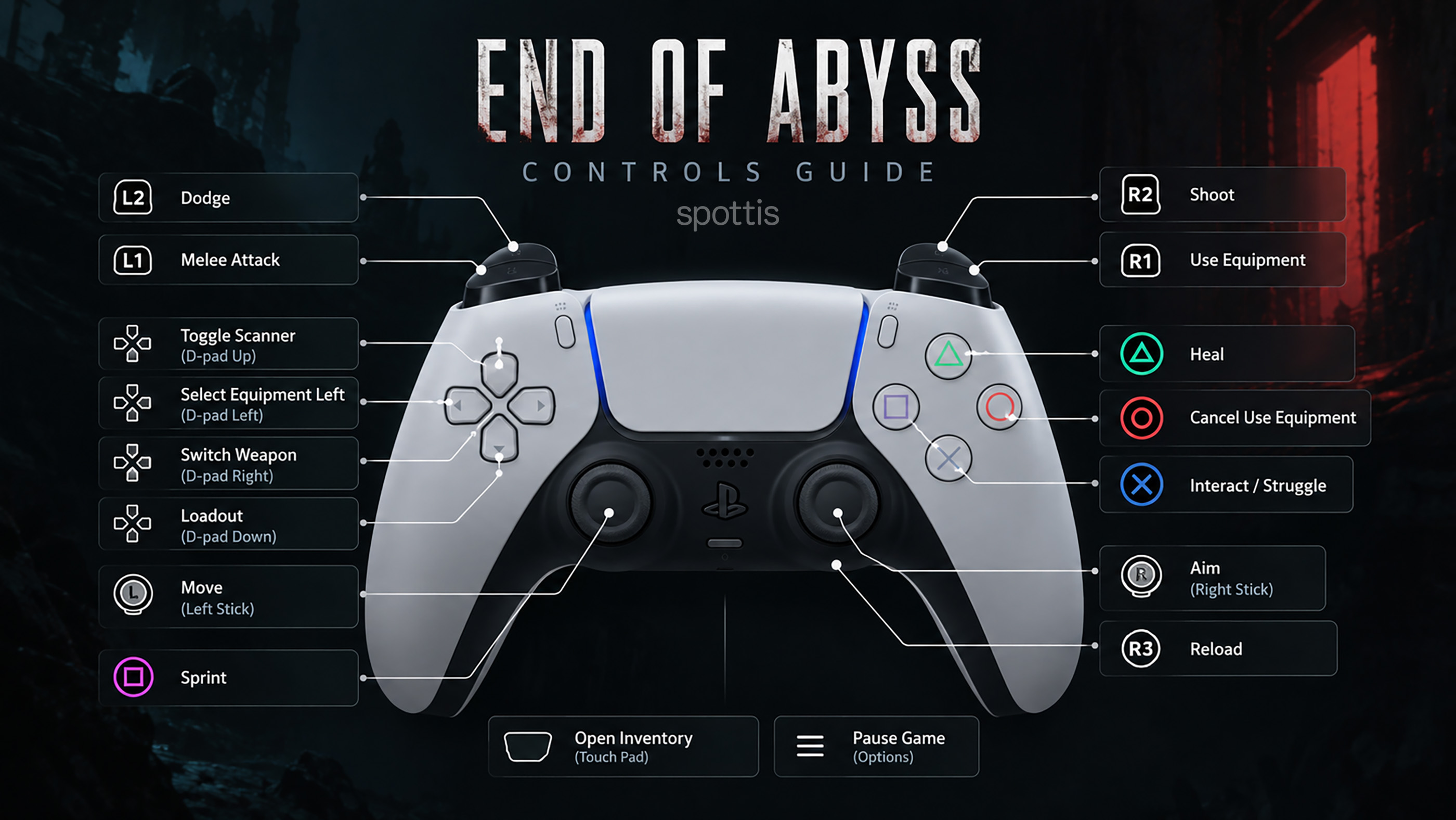
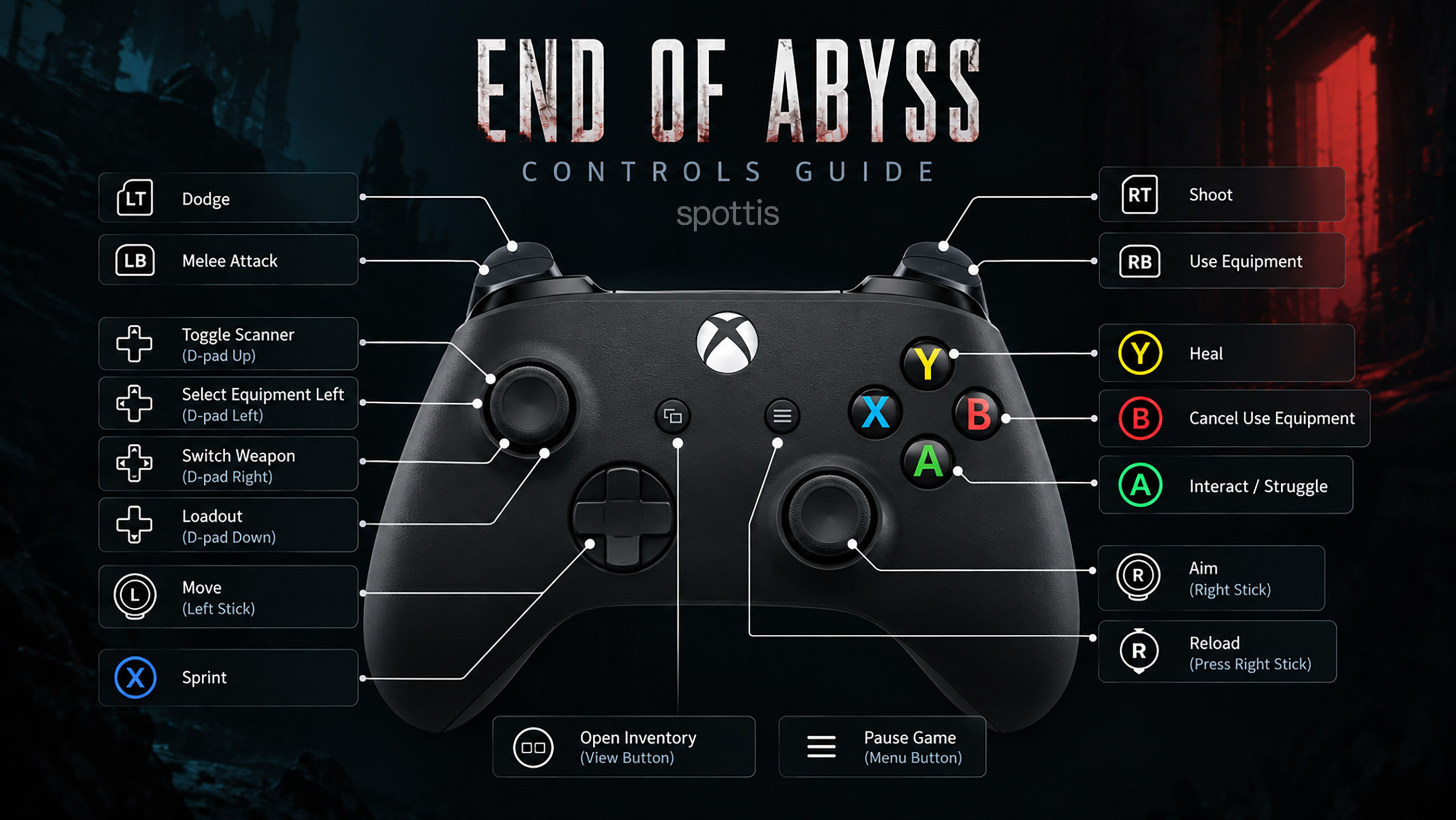
R3 on PlayStation and RS Click on Xbox both mean pressing the right analog stick inward. L2 and R2 correspond to LT and RT, while L1 and R1 correspond to LB and RB.
Some actions share the same button because they are used in different situations. For example, Interact and Struggle both use X on PlayStation or A on Xbox. D Pad Right is also assigned to weapon switching and equipment selection.
Movement Controls
Movement in End of Abyss uses the left analog stick on a controller. Sprinting and dodging have separate buttons, allowing you to choose between moving quickly and avoiding an immediate threat.
On PlayStation, press Square to sprint and L2 to dodge. On Xbox, the corresponding buttons are X and LT.
Dodging is particularly useful when an enemy begins an attack or when you need to escape a dangerous position.
Practise moving in different directions while dodging. Understanding where your character will end up is important when fighting enemies in narrow spaces.
Combat Controls and Aiming
End of Abyss uses a twin stick combat system. On a controller, the left stick handles movement while the right stick controls aiming.
This allows you to move away from enemies while continuing to aim at them.
On PlayStation, R2 fires your weapon, L1 performs a melee attack and R3 reloads. Xbox players use RT to shoot, LB for melee and RS Click to reload.
Learning to move and aim independently is one of the most useful skills for surviving difficult encounters.
Instead of standing still while firing, try moving around enemies and maintaining enough space to dodge when necessary.
How to Dodge in End of Abyss
Dodging is assigned to L2 on PlayStation and LT on Xbox.
Use it to avoid incoming attacks and reposition when enemies get too close.
Pay attention to enemy movement before dodging. Reacting to an approaching attack is generally more useful than repeatedly pressing the dodge button without a clear reason.
Also consider your surroundings. Dodging away from one enemy can put you in danger if another creature is waiting nearby.
How to Heal in End of Abyss
Healing has a dedicated button, allowing you to recover without opening the inventory during combat.
Press Triangle on PlayStation or Y on Xbox to activate the Heal action.
Before healing, try to create some distance from nearby enemies. Using healing resources while surrounded can leave you vulnerable.
It is also worth checking your available healing supplies before entering an unfamiliar or dangerous area.
How to Reload and Switch Weapons
Reloading is assigned to R3 on PlayStation and RS Click on Xbox.
To switch weapons, use D Pad Right in the displayed controller configuration.
Reloading at the wrong moment can interrupt your attack, so pay attention to your ammunition and reload when you have enough space.
If you have more than one weapon available, switching between them can help you respond to different situations without opening the inventory.
Equipment Controls and Loadout
End of Abyss includes dedicated shortcuts for using equipment, cancelling equipment use and selecting items.
Press R1 on PlayStation or RB on Xbox to use equipment. Press Circle or B to cancel equipment use.
The directional buttons handle equipment selection. D Pad Left selects equipment to the left, while D Pad Right selects equipment to the right when the relevant equipment interface is active.
D Pad Down is assigned to the Loadout action.
These shortcuts are worth learning because they allow you to access equipment without repeatedly navigating the full inventory.
How to Use the Scanner
The Scanner has a dedicated control in End of Abyss.
Press D Pad Up on PlayStation or Xbox to toggle the Scanner.
The Scanner is useful when investigating unfamiliar areas and looking for information about your surroundings.
Remembering this shortcut makes it easier to examine the environment without interrupting exploration to search through menus.
Interaction and Struggle Controls
Interact and Struggle share the same controller button.
Press X on PlayStation or A on Xbox to interact with an object when an interaction is available.
The same button is used for the Struggle action during appropriate situations.
Watch for contextual prompts because the game determines which action is available based on what is happening.
End of Abyss Inventory and Menu Controls
Inventory and menu navigation use a slightly different set of controls from normal gameplay.
On PlayStation, the touch pad opens the inventory and Options pauses the game. On Xbox, the corresponding buttons are View and Menu.
Use the following table to compare menu navigation controls across platforms.
| Menu Action | PS5 | Xbox | PC |
|---|---|---|---|
| Move Left Stick | Left Stick | Left Stick | Check Menu Navigation binding |
| Move Right Stick | Right Stick | Right Stick | Check Menu Navigation binding |
| Confirm | X | A | Check Confirm binding |
| Cancel | Circle | B | Check Cancel binding |
| Move Up | D Pad Up | D Pad Up | Check Menu Up binding |
| Move Down | D Pad Down | D Pad Down | Check Menu Down binding |
| Move Left | D Pad Left | D Pad Left | Check Menu Left binding |
| Move Right | D Pad Right | D Pad Right | Check Menu Right binding |
| Previous Tab | L1 | LB | Check Previous Tab binding |
| Next Tab | R1 | RB | Check Next Tab binding |
| Toggle Pause | Options | Menu Button | Check Pause binding |
| Toggle Inventory | Touch Pad | View Button | Check Inventory binding |
| Menu Action 1 | Square | X | Check Menu Action 1 binding |
| Menu Action 2 | Triangle | Y | Check Menu Action 2 binding |
L1 and R1 on PlayStation, or LB and RB on Xbox, are useful for switching between menu tabs.
Square and Triangle on PlayStation correspond to X and Y on Xbox for additional menu actions.
End of Abyss PC Keyboard and Mouse Controls
PC players can access the game's controls through the Keyboard and Mouse section of the settings menu.
The available PlayStation screenshots confirm the actions supported by the game but do not show the exact default keyboard assignments.
For that reason, the PC column above identifies the relevant binding to check rather than assuming that End of Abyss uses the same default keys as another action game.
To check your PC controls, open Settings, select Controls and locate the keyboard and mouse assignments.
Pay particular attention to the bindings for Dodge, Heal, Reload, Scanner and Use Equipment. These are actions you may need quickly during combat or exploration.
If you use a compatible controller on PC, refer to the PlayStation or Xbox columns as a starting point and check the prompts displayed by your game.
Can You Change Controls in End of Abyss?
Yes. End of Abyss includes a Controls menu where individual actions can be selected and reassigned.
The PlayStation screenshots show the following commands for editing controller bindings:
- Select: X
- Reset: Triangle
- Save: Square
- Navigate: D Pad
- Back: Circle
On an equivalent Xbox controller layout, these correspond to A for Select, Y for Reset, X for Save, the D Pad for navigation and B for Back.
If you change a button assignment, remember to save the configuration before leaving the menu.
If your controls stop behaving as expected, return to the settings and check whether a button has been reassigned.
End of Abyss Controls FAQ
How do you sprint in End of Abyss?
Press Square on PlayStation or X on Xbox using the corresponding controller layout. PC players should check the Sprint binding in the Controls menu.
How do you dodge in End of Abyss?
Press L2 on PlayStation or LT on Xbox. On PC, use the key assigned to Dodge in the keyboard and mouse settings.
How do you heal in End of Abyss?
Press Triangle on PlayStation or Y on Xbox. The Heal action can also be assigned through the PC controls settings.
How do you reload your weapon?
Press R3 on PlayStation or RS Click on Xbox. Both mean pressing the right analog stick inward.
How do you shoot in End of Abyss?
Use the right stick to aim and R2 on PlayStation or RT on Xbox to shoot.
How do you use melee attacks?
Press L1 on PlayStation or LB on Xbox.
How do you open the inventory?
Press the touch pad on PlayStation or the View button on Xbox. PC players should check their Inventory binding.
How do you use equipment?
Press R1 on PlayStation or RB on Xbox. Press Circle or B to cancel equipment use.
How do you activate the Scanner?
Press D Pad Up on PlayStation or Xbox to toggle the Scanner.
How do you switch weapons?
Use D Pad Right in the controller layout shown in the game's settings.
Does End of Abyss support Xbox controllers?
The PlayStation and Xbox columns show equivalent controller inputs. Players using an Xbox controller should confirm the active button assignments in their version of the game.
What are the default End of Abyss PC controls?
The exact default keyboard and mouse assignments have not been verified from the available screenshots. Open the PC Controls menu to see the bindings for your version.
Can you customise the controls?
Yes. The game's Controls menu supports selecting actions, changing assignments, resetting controls and saving the updated configuration.
Comments
No comments yet. Be the first to share your thoughts!