Grand Theft Auto V gives you control over almost everything imaginable: walking, shooting, driving, flying, swimming, using the phone, switching characters, operating special vehicles, and navigating GTA Online. Because the same button can perform different actions depending on the situation, learning the default GTA 5 controls can save you from accidentally diving out of cover, abandoning a vehicle, or opening the wrong menu during a firefight.
This guide lists the default controls for PlayStation 5, PlayStation 4, Xbox Series X|S, Xbox One, and PC. It covers both Grand Theft Auto V Story Mode and the shared core controls used in GTA Online. Some actions may change when using first-person mode, operating a special vehicle, participating in a mission, or changing the control preset in the Settings menu.
Important: The tables below use the standard default control scheme. GTA 5 lets you change targeting mode, sprint behavior, first-person controls, controller presets, aircraft controls, and many PC key bindings from the Settings menu.
How to View or Change Controls in GTA 5
Open the pause menu and select Settings > Controls. On consoles, the control screen can display separate layouts for on-foot movement, vehicles, aircraft, submarines, and other situations. PC players can open Settings > Key Bindings to change keyboard and mouse commands individually.
The control menu also includes options such as:
- Targeting mode
- Sprint mode
- Controller vibration
- Adaptive trigger strength on supported PlayStation controllers
- Invert look
- Third-person control type
- First-person control type
- Drive-by and aircraft control settings
GTA 5 Basic Controls for PlayStation, Xbox, and PC
| Action | PlayStation | Xbox | PC |
|---|---|---|---|
| Move | Left Stick | Left Stick | W, A, S, D |
| Look / Move Camera | Right Stick | Right Stick | Mouse |
| Sprint | Press L3 | Press Left Stick | Left Shift |
| Jump / Climb | Square | X | Spacebar |
| Stealth Mode | Press L3 while moving slowly or use the assigned stealth command | Press Left Stick while moving slowly or use the assigned stealth command | Left Ctrl |
| Pause Menu | Options | Menu | Esc |
| Character / Player Menu | Touchpad | View | M in GTA Online |
| Open Map | Options, then Map | Menu, then Map | P or Esc, then Map |
GTA Online shortcut: Hold the Touchpad on PlayStation, hold the View button on Xbox, or press M on PC to open the Interaction Menu. This menu is used for objectives, inventory items, body armor, snacks, vehicles, organizations, appearance options, and other online features.
GTA 5 On-Foot Controls
These are the standard controls used while exploring Los Santos and Blaine County on foot. Several face buttons are context-sensitive, meaning their action can change when you are near a vehicle, ladder, cover point, collectible, NPC, or mission object.
| Action | PlayStation | Xbox | PC |
|---|---|---|---|
| Move Forward | Left Stick Up | Left Stick Up | W |
| Move Backward | Left Stick Down | Left Stick Down | S |
| Move Left | Left Stick Left | Left Stick Left | A |
| Move Right | Left Stick Right | Left Stick Right | D |
| Look Around | Right Stick | Right Stick | Mouse |
| Sprint | Tap or hold Cross, depending on Sprint Mode | Tap or hold A, depending on Sprint Mode | Left Shift |
| Jump / Climb | Square | X | Spacebar |
| Enter or Exit Vehicle | Triangle | Y | F |
| Take Cover | R1 | RB | Q |
| Aim Weapon / Lock On | L2 | LT | Right Mouse Button |
| Fire Weapon | R2 | RT | Left Mouse Button |
| Reload | Circle | B | R |
| Melee Attack | Circle while close to a target | B while close to a target | R while close to a target |
| Dodge / Combat Roll | Square while aiming and moving | X while aiming and moving | Spacebar while aiming and moving |
| Weapon Wheel | Hold L1 | Hold LB | Hold Tab |
| Switch Weapon Within Category | D-Pad Left or Right while weapon wheel is open | D-Pad Left or Right while weapon wheel is open | Mouse Wheel or number keys |
| Quick Weapon Cycle | Tap L1 | Tap LB | Mouse Wheel |
| Use Phone | D-Pad Up | D-Pad Up | Up Arrow or Middle Mouse Button |
| Phone Left | D-Pad Left | D-Pad Left | Left Arrow |
| Phone Right | D-Pad Right | D-Pad Right | Right Arrow |
| Phone Up / Down | D-Pad Up / Down | D-Pad Up / Down | Up / Down Arrow |
| Phone Select | Cross | A | Enter or Left Mouse Button |
| Phone Cancel / Back | Circle | B | Backspace or Right Mouse Button |
| Character Selector | Hold D-Pad Down | Hold D-Pad Down | Hold Left Alt |
| Select Michael | Hold D-Pad Down, then Right Stick Left | Hold D-Pad Down, then Right Stick Left | Hold Left Alt, then select Michael |
| Select Franklin | Hold D-Pad Down, then Right Stick Up | Hold D-Pad Down, then Right Stick Up | Hold Left Alt, then select Franklin |
| Select Trevor | Hold D-Pad Down, then Right Stick Right | Hold D-Pad Down, then Right Stick Right | Hold Left Alt, then select Trevor |
| Select GTA Online Character | Hold D-Pad Down, then Right Stick Down | Hold D-Pad Down, then Right Stick Down | Hold Left Alt, then select the online character |
| Activate Character Special Ability | Press L3 + R3 | Press Left Stick + Right Stick | Caps Lock |
| Look Behind | Press R3 | Press Right Stick | C |
| Contextual Interaction | D-Pad Right | D-Pad Right | E |
| Drop Weapon | Triangle while the weapon wheel is open | Y while the weapon wheel is open | F9 |
| Drop Ammunition | Square while the weapon wheel is open | X while the weapon wheel is open | F10 |
How Sprinting Works in GTA 5
GTA 5 supports different sprint behaviors. Under the Controls menu, Sprint Mode can change whether you repeatedly tap the sprint button or hold it. With the traditional controller layout, players normally move with the left stick and repeatedly tap or hold Cross on PlayStation or A on Xbox to sprint.
PC players sprint by holding Left Shift. Sprinting consumes stamina, although each protagonist can improve the stamina stat through continued running, swimming, and cycling.
How to Take Cover in GTA 5
Stand close to a suitable wall, vehicle, barrier, or solid object and press R1 on PlayStation, RB on Xbox, or Q on PC. While in cover, use the movement controls to slide along the surface.
- Hold the aim button to lean out and aim.
- Press the fire button without fully aiming to perform blind fire.
- Move toward the edge of cover to look around a corner.
- Press the cover button again or move away to leave cover.
Cover is useful during police chases and missions, but staying behind the same object for too long can allow enemies to flank you. Vehicles can also explode after sustained gunfire, so they are not always safe long-term cover.
GTA 5 Combat and Weapon Controls
| Combat Action | PlayStation | Xbox | PC |
|---|---|---|---|
| Aim | Hold L2 | Hold LT | Hold Right Mouse Button |
| Fire | R2 | RT | Left Mouse Button |
| Reload | Circle | B | R |
| Enter Cover | R1 | RB | Q |
| Combat Roll | Square while aiming | X while aiming | Spacebar while aiming |
| Throw Equipped Explosive | R2 | RT | Left Mouse Button |
| Throw Explosive While Aiming a Gun | D-Pad Left | D-Pad Left | G |
| Weapon Wheel | Hold L1 | Hold LB | Hold Tab |
| Previous Weapon | Tap L1 or cycle within the wheel | Tap LB or cycle within the wheel | Mouse Wheel Up |
| Next Weapon | Tap L1 or cycle within the wheel | Tap LB or cycle within the wheel | Mouse Wheel Down |
| Weapon Flashlight | D-Pad Right while aiming with a compatible weapon | D-Pad Right while aiming with a compatible weapon | E while aiming with a compatible weapon |
| Sniper Scope Zoom In | D-Pad Up | D-Pad Up | Mouse Wheel Up |
| Sniper Scope Zoom Out | D-Pad Down | D-Pad Down | Mouse Wheel Down |
Context-sensitive controls: Reload, melee, interaction, flashlight, phone, and cover commands can behave differently depending on the equipped weapon and what your character is standing near.
How to Use the Weapon Wheel
Hold L1 on PlayStation, LB on Xbox, or Tab on PC to slow time in Story Mode and display the weapon wheel. Move the right stick or mouse toward a weapon category, then release the weapon-wheel button to equip it.
Several categories contain more than one weapon. Highlight the category and use the displayed cycle command to select a pistol, rifle, shotgun, throwable, melee weapon, or heavy weapon stored in that slot.
Time does not pause or slow in the same way during GTA Online, so select weapons carefully when enemies or other players are nearby.
How Character Switching Works
In Story Mode, hold D-Pad Down on a controller or Left Alt on PC to open the character wheel. Select Michael, Franklin, or Trevor to switch protagonists whenever the story and current activity allow it.
Each protagonist also has a unique special ability:
- Michael: Slows time during on-foot gunfights.
- Franklin: Slows time and improves handling while driving.
- Trevor: Enters a rage state that increases his outgoing damage and reduces incoming damage.
Press L3 + R3 on PlayStation, press both stick buttons on Xbox, or press Caps Lock on PC to activate the current protagonist's special ability when the ability meter contains enough charge.
GTA 5 Vehicle Controls
Driving is a huge part of Grand Theft Auto V, whether you are escaping a wanted level, competing in a street race or simply crossing Los Santos. The default vehicle layout keeps acceleration and braking on the triggers, while steering remains on the left stick.
| Driving Action | PlayStation | Xbox | PC Keyboard & Mouse |
|---|---|---|---|
| Steer | Left Stick | Left Stick | A / D |
| Accelerate | R2 | RT | W |
| Brake / Reverse | L2 | LT | S |
| Handbrake | R1 | RB | Spacebar |
| Exit Vehicle | Triangle | Y | F |
| Change Camera | R3 | Right Stick Click | V |
| Look Around | Right Stick | Right Stick | Mouse |
| Look Behind | R3 | Right Stick Click | C |
| Horn | L3 | Left Stick Click | E |
| Duck Inside Vehicle | X | A | X |
| Headlights | D-Pad Right | D-Pad Right | H |
| Next Radio Station | D-Pad Left / Right | D-Pad Left / Right | Mouse Wheel |
| Open Radio Wheel | Hold D-Pad Left | Hold D-Pad Left | Hold Q |
| Use Phone | D-Pad Up | D-Pad Up | Up Arrow / Middle Mouse |
| Character Selection | Hold D-Pad Down | Hold D-Pad Down | Hold Left Alt |
Driving tip: Use ordinary braking before entering a corner and save the handbrake for tight turns, emergency direction changes and deliberate drifts. Holding the handbrake through every corner usually removes too much speed.
Drive-By and Armed Vehicle Controls
Weapons behave differently when used from a vehicle. Standard cars allow the player to aim and fire a handheld weapon through a window, while weaponized vehicles may use mounted guns, rockets, mines or countermeasures.
| Combat Action | PlayStation | Xbox | PC Keyboard & Mouse |
|---|---|---|---|
| Aim Drive-By Weapon | L1 | LB | Right Mouse Button |
| Fire Drive-By Weapon | R1 | RB | Left Mouse Button |
| Fire Mounted Vehicle Weapon | X | A | Spacebar |
| Switch Vehicle Weapon | Square | X | Tab |
| Aim Mounted Weapon | Right Stick | Right Stick | Mouse |
| Drop Mine or Secondary Weapon | D-Pad Right | D-Pad Right | E |
| Activate Vehicle Boost | L3 | Left Stick Click | E |
Exact weapon functions can vary between vehicles. For example, the same button may activate a boost in one car, fire a machine gun in another or deploy a special ability in a weaponized GTA Online vehicle.
Motorcycle and Bicycle Controls
Motorcycles use most of the standard driving inputs, but rider weight becomes important when performing wheelies, controlling jumps or preventing the bike from pitching forward.
| Bike Action | PlayStation | Xbox | PC Keyboard & Mouse |
|---|---|---|---|
| Accelerate | R2 | RT | W |
| Brake / Reverse | L2 | LT | S |
| Steer | Left Stick | Left Stick | A / D |
| Lean Forward | Left Stick Up | Left Stick Up | Left Shift |
| Lean Back / Wheelie | Left Stick Down | Left Stick Down | Left Ctrl |
| Handbrake / Rear Brake | R1 | RB | Spacebar |
| Bicycle Sprint | Repeatedly Tap X | Repeatedly Tap A | Repeatedly Tap Caps Lock |
| Bicycle Jump | R1 | RB | Spacebar |
GTA 5 Aircraft Controls
Aircraft controls require more coordination than ordinary driving. Planes use pitch, roll, yaw and throttle, while helicopters add vertical lift and more sensitive hovering controls.
Plane Controls
| Plane Action | PlayStation | Xbox | PC Keyboard & Mouse |
|---|---|---|---|
| Increase Throttle | R2 | RT | W |
| Decrease Throttle | L2 | LT | S |
| Pitch and Roll | Left Stick | Left Stick | Numpad 8 / 5 / 4 / 6 |
| Yaw Left | L1 | LB | A |
| Yaw Right | R1 | RB | D |
| Landing Gear / VTOL Mode | D-Pad Right | D-Pad Right | G |
| Aircraft Fire | X | A | Spacebar |
| Next Aircraft Weapon | Square | X | Tab |
| Change Camera | R3 | Right Stick Click | V |
| Look Around | Right Stick | Right Stick | Mouse |
| Look Behind | R3 | Right Stick Click | C |
| Exit Aircraft | Triangle | Y | F |
Helicopter Controls
| Helicopter Action | PlayStation | Xbox | PC Keyboard & Mouse |
|---|---|---|---|
| Ascend | R2 | RT | W |
| Descend | L2 | LT | S |
| Pitch Forward / Backward | Left Stick Up / Down | Left Stick Up / Down | Numpad 8 / 5 |
| Roll Left / Right | Left Stick Left / Right | Left Stick Left / Right | Numpad 4 / 6 |
| Yaw Left | L1 | LB | A |
| Yaw Right | R1 | RB | D |
| Fire Weapon | X | A | Spacebar |
| Switch Weapon | Square | X | Tab |
| Exit Helicopter | Triangle | Y | F |
Flying tip: Make small stick corrections. Holding a direction for too long causes oversteering, especially in helicopters. For a controlled landing, level the aircraft first and then reduce altitude gradually.
Parachute Controls
| Parachute Action | PlayStation | Xbox | PC Keyboard & Mouse |
|---|---|---|---|
| Deploy Parachute | X | A | Left Mouse Button |
| Steer | Left Stick | Left Stick | W / A / S / D |
| Sharp Turn Left | L1 | LB | Q |
| Sharp Turn Right | R1 | RB | E |
| Precision Landing Brake | L1 + R1 | LB + RB | Q + E |
| Detach Parachute | Triangle | Y | F |
| Smoke Trail | X | A | X |
Pulling both parachute brake inputs slows forward movement and makes it easier to land on rooftops, moving targets and narrow objective markers.
Submarine and Underwater Controls
| Underwater Action | PlayStation | Xbox | PC Keyboard & Mouse |
|---|---|---|---|
| Swim Forward | Left Stick | Left Stick | W |
| Swim Faster | Tap X | Tap A | Left Shift |
| Ascend | Left Stick Up / X | Left Stick Up / A | Left Shift |
| Descend | Left Stick Down | Left Stick Down | Left Ctrl |
| Look / Change Direction | Right Stick | Right Stick | Mouse |
| Exit Submersible | Triangle | Y | F |
Phone Controls
The in-game phone is used for contacts, messages, mission invitations, quick jobs, internet browsing and many GTA Online services.
| Phone Action | PlayStation | Xbox | PC Keyboard & Mouse |
|---|---|---|---|
| Open Phone | D-Pad Up | D-Pad Up | Up Arrow / Middle Mouse |
| Navigate Phone | D-Pad | D-Pad | Arrow Keys / Mouse |
| Select | X | A | Enter / Left Click |
| Back / Hang Up | Circle | B | Backspace / Right Click |
| Phone Left | D-Pad Left | D-Pad Left | Left Arrow |
| Phone Right | D-Pad Right | D-Pad Right | Right Arrow |
| Phone Down | D-Pad Down | D-Pad Down | Down Arrow |
| Answer Call | X | A | Enter |
| Decline Call | Circle | B | Backspace |
GTA Online Interaction Menu Controls
The Interaction Menu provides fast access to GPS destinations, inventory items, body armor, snacks, vehicles, appearance options and organization features. On current consoles, it is opened by holding the touchpad or View button rather than tapping it.
| Interaction Menu Action | PlayStation | Xbox | PC Keyboard & Mouse |
|---|---|---|---|
| Open Interaction Menu | Hold Touchpad | Hold View Button | M |
| Navigate | D-Pad | D-Pad | Arrow Keys / Mouse |
| Select | X | A | Enter |
| Back | Circle | B | Backspace |
Rockstar lists the default GTA Online Interaction Menu inputs as holding the touchpad on PlayStation, holding the View button on Xbox and pressing M on PC.
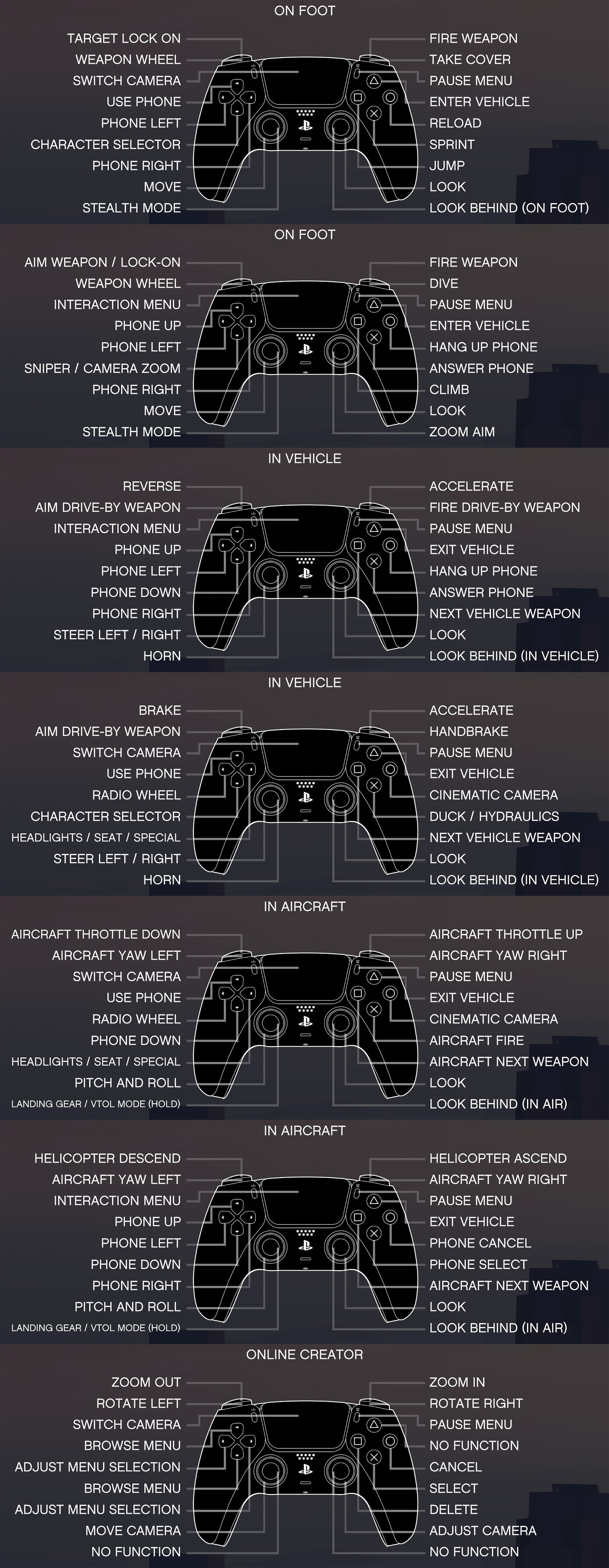
How to Change GTA 5 Controller Settings
GTA 5 offers several presets and sensitivity settings, although console editions do not provide unrestricted button-by-button remapping for every gameplay action.
- Pause the game and open Settings.
- Select Controls or Gamepad.
- Choose the control category you want to adjust.
- Change targeting mode, aiming sensitivity, vibration, sprint behavior or control presets.
- Test the new setup in a quiet area before starting a mission or joining a competitive mode.
Useful Controller Settings
- Targeting Mode: Changes how strongly the game assists your aim.
- Third-Person Control Type: Changes the general on-foot controller preset.
- First-Person Control Type: Uses a separate preset while playing in first person.
- Sprint Mode: Determines whether sprinting requires repeated tapping, holding or toggling.
- Vibration: Enables or disables controller feedback.
- Adaptive Triggers: Adjusts DualSense trigger resistance on supported PS5 versions.
- Aircraft Control Type: Changes the behavior of flight inputs.
Frequently Asked Questions
How do you sprint in GTA 5?
Press or repeatedly tap X on PlayStation, A on Xbox or Left Shift on PC. The exact behavior depends on the selected sprint setting and whether the character is on foot, swimming or riding a bicycle.
How do you take cover in GTA 5?
Press R1 on PlayStation, RB on Xbox or Q on PC while standing near a suitable wall, vehicle or solid object.
How do you open the weapon wheel?
Hold L1 on PlayStation, LB on Xbox or Tab on PC. Move the right stick or mouse toward the desired weapon, then release the weapon-wheel button.
How do you switch characters?
In Story Mode, hold D-Pad Down on PlayStation or Xbox and select a character with the right stick. On PC, hold Left Alt and move the mouse toward the required character.
How do you enter first-person mode?
Press the touchpad on PlayStation, the View button on Xbox or V on PC. Continue pressing the camera button to cycle through the available perspectives.
How do you fly a plane in GTA 5?
Use the triggers or W and S to control throttle. Use the left stick on a controller, or the numeric keypad on PC, to control pitch and roll. L1 and R1—or A and D on PC—control the rudder.
Can GTA 5 controls be remapped?
The PC version allows extensive keyboard and mouse rebinding. Console versions provide controller presets and gameplay settings, while complete custom remapping may require the accessibility or controller-remapping tools built into the console.
Why do some GTA 5 buttons perform several actions?
The game uses contextual controls. A button may perform a different action depending on whether the character is walking, aiming, driving, flying, swimming, using the phone or operating a special vehicle.
GTA 5 Controls at a Glance
Most essential actions follow a consistent pattern across the game: triggers control aiming, firing, acceleration and braking; the face buttons handle jumping, entering vehicles and reloading; the sticks control movement and the camera; and the D-Pad manages weapons, the phone and character-specific shortcuts. Learning the contextual functions is the key to moving smoothly between gunfights, driving and aircraft gameplay.


Comments
No comments yet. Be the first to share your thoughts!