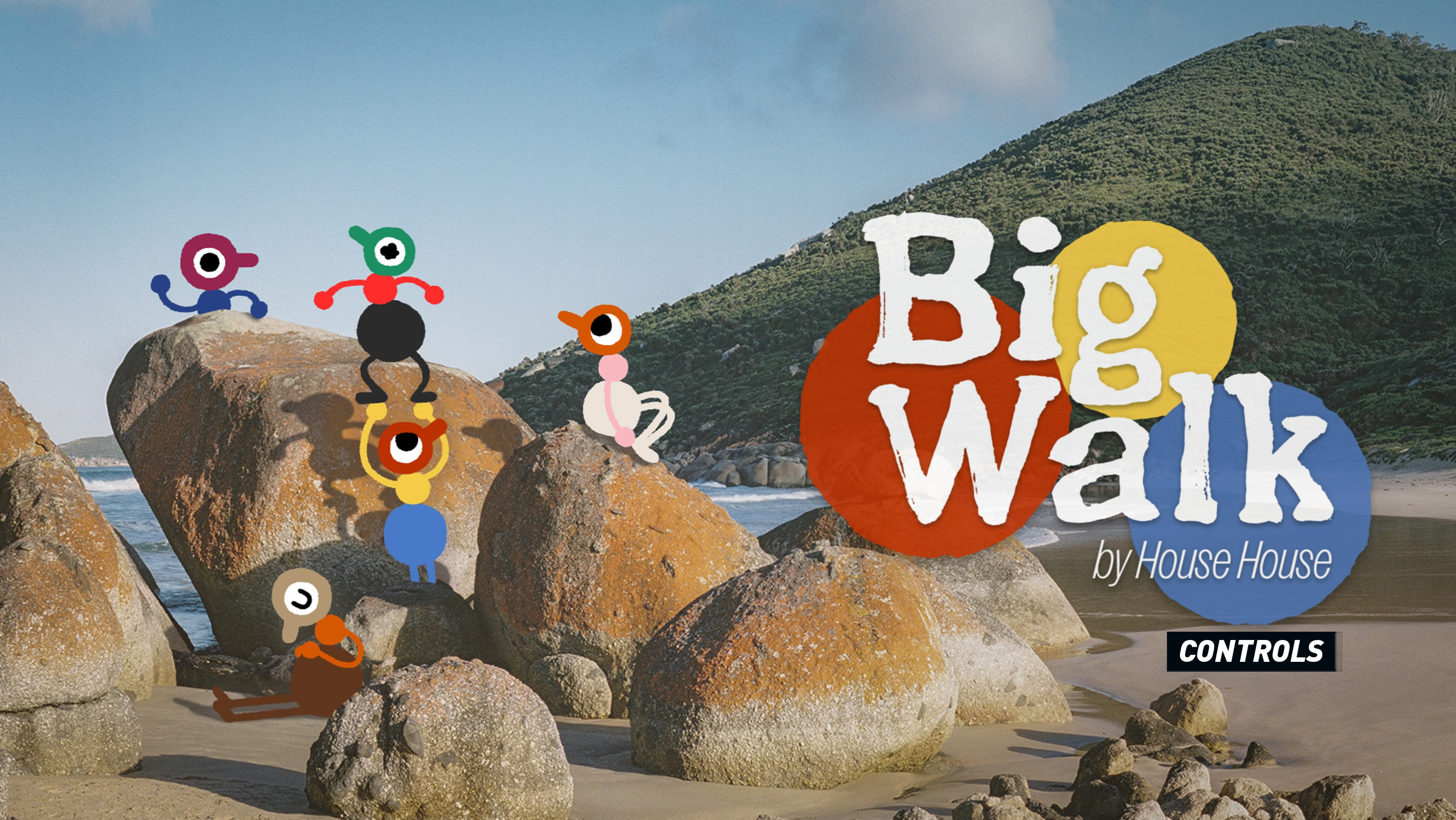
Big Walk keeps its control scheme deliberately physical and easy to understand. You can walk, sprint, jump, crouch, pick up strange objects, throw things, sit down, and independently raise either arm to point or gesture at your friends. Those simple actions become surprisingly important when your group is separated, voice communication stops working, or a puzzle asks everyone to coordinate without clear instructions.
This guide covers the equivalent Big Walk controls for PlayStation 5, Xbox controllers, and PC keyboard and mouse. The face-button names change between controllers, but the action layout remains consistent. Controls can also be rebound from the settings menu, so your personal configuration may differ from the defaults shown below.
Big Walk Controls
| Action | PlayStation 5 | Xbox Controller | PC |
|---|---|---|---|
| Move | Left Stick | Left Stick | W / A / S / D |
| Look Around / Camera | Right Stick | Right Stick | Mouse |
| Jump | X | A | Space |
| Crouch | Circle | B | Left Ctrl |
| Grab / Use | L1 | LB | Left Mouse Button |
| Drop / Throw | R1 | RB | Right Mouse Button |
| Sprint | L3 | Left Stick Click | Left Shift |
| Raise Left Arm | L2 | LT | Q |
| Raise Right Arm | R2 | RT | E |
| Sit Down | R3 | Right Stick Click | C |
| Mute Microphone | Triangle | Y | M |
| Open Text Chat | Touch Pad | View Button | Enter |
| Pause / Open Menu | Options | Menu Button | Esc |
Note: Big Walk supports control rebinding. Open the settings menu and select the controller or keyboard bindings page to change an action or restore the original layout. Button prompts may also change automatically when switching between a controller and keyboard.
How Big Walk's Controls Work
Big Walk is not built around complicated combat combinations or a crowded ability bar. Its controls are designed around movement, physical comedy, communication, and cooperation. The important part is not simply knowing which button performs an action, but understanding how that action can communicate an idea to the rest of the group.
Walking and Looking Around
Use the Left Stick on a controller or W, A, S, and D on PC to move. The camera is controlled with the Right Stick or mouse. Big Walk takes place in a broad environment where landmarks, unusual structures, pathways, and objects help you understand your location, so regularly turning the camera and checking behind you is worthwhile.
The game is intentionally about getting lost together rather than following a constant trail of objective markers. Try to remember visually distinctive locations and communicate them to your group before everyone wanders in a different direction.
Sprinting
Press L3 on PlayStation, click the Left Stick on Xbox, or use Left Shift on PC to sprint. Sprinting is useful for catching up with friends, crossing open areas, or returning to a landmark after becoming separated.
Speed is helpful, but racing too far ahead can leave slower players behind and weaken proximity-based communication. When travelling as a group, occasionally turn around and check that everyone is still nearby.
Jumping
Press X on PlayStation, A on Xbox, or Space on PC to jump. Jumping is used for basic traversal, climbing over uneven terrain, reaching objects, and participating in environmental challenges.
Do not treat every obstacle as a straightforward platforming test. Big Walk often encourages players to inspect the surroundings, experiment with nearby tools, or involve another person rather than repeatedly forcing the same jump.
Crouching
Press Circle on PlayStation, B on Xbox, or Left Ctrl on PC to crouch. Crouching lowers your character and can help when moving through low spaces or positioning yourself around unusual objects.
It is also a useful non-verbal gesture. A quick crouch can be used as an improvised greeting, acknowledgement, celebration, or signal that you are ready for another player to begin an action.
Grabbing and Using Objects
Use L1 on PlayStation, LB on Xbox, or the Left Mouse Button on PC to grab or use an object. This is one of the most important controls in Big Walk because tools, toys, puzzle pieces, and other interactive items are scattered throughout the world.
When holding something, consider showing it to your teammates before carrying it away. An object that looks like a joke or harmless toy may be connected to a nearby challenge, communication system, or group activity.
Dropping and Throwing Objects
Press R1 on PlayStation, RB on Xbox, or the Right Mouse Button on PC to drop or throw the object you are carrying. A quick input releases it nearby, while the exact result may depend on your movement and the object being held.
Throwing can be practical or mischievous. You might pass an item across a gap, move a tool closer to another player, draw attention to an object, or accidentally send something important rolling down a hill. Check your surroundings before throwing a useful item near water, cliffs, or steep terrain.
Raising Your Arms
Hold L2 or LT to raise the left arm, and hold R2 or RT to raise the right arm. On PC, use Q for the left arm and E for the right arm.
The independent arm controls are more than a visual joke. They allow players to point, wave, indicate directions, signal agreement, and invent gestures when spoken communication is unavailable. Raising both arms can also make your intentions easier to see from a distance.
Try establishing a few basic signals with your group early. For example, one raised arm can mean “look over there,” both arms can mean “wait,” and repeated waving can mean “come back.” There is no required gesture vocabulary—the fun comes from inventing one together.
Sitting Down
Press R3 on PlayStation, click the Right Stick on Xbox, or press C on PC to sit down. While it might seem like a humorous animation at first, sitting has practical uses during multiplayer sessions.
When exploring with several players, sitting can quickly communicate that you've reached a meeting point, you're waiting for the rest of the group, or you've discovered something interesting that everyone should come and investigate.
Many groups naturally create their own meanings for this action. Sitting beside a puzzle may mean "don't touch anything yet," while sitting at a crossroads often becomes an easy rally point after everyone spreads out.
Voice Chat Controls
Communication is one of Big Walk's defining gameplay mechanics. Instead of relying entirely on objective markers or traditional quest systems, players solve problems by talking, observing, experimenting, and sharing information.
Press Triangle on PlayStation, Y on Xbox, or M on PC to mute or unmute your microphone.
If voice communication becomes difficult because teammates are too far away, don't assume something is broken. Distance plays an important role in many situations, and your group may need to move closer together or find another way to communicate.
Opening Text Chat
If voice chat isn't practical, you can open text chat by pressing the Touch Pad on PlayStation, the View button on Xbox, or Enter on PC.
Text chat is useful for clarifying instructions, helping players who cannot use voice communication, or quickly confirming a plan before everyone heads in different directions.
Keep messages short and clear. Instead of writing long explanations, use simple instructions such as "Meet at tower," "Found puzzle," or "Bring the blue object."
Pausing the Game
Use the Options button on PlayStation, the Menu button on Xbox, or Esc on PC to pause the game and access settings.
From here you can adjust controller sensitivity, audio settings, accessibility features, graphics options, and rebind your controls if desired.
Can You Rebind Controls?
Yes. Big Walk includes full input rebinding support. Every player has different preferences, and the game allows you to customize your controller or keyboard layout from the Settings menu.
If you're playing on PC, you may wish to move frequently used actions closer together. Controller players who prefer different sprint or crouch buttons can also customize the layout to match other games they regularly play.
Gameplay Notes
Unlike most cooperative adventure games, Big Walk doesn't revolve around combat or collecting powerful equipment. Instead, its controls encourage players to interact naturally with one another and the world around them.
- Communication is usually more important than quick reflexes.
- Experiment with objects before assuming they have only one purpose.
- Physical gestures often communicate just as effectively as voice chat.
- Stay close to teammates when exploring unfamiliar areas.
- Don't be afraid to split up, but always agree on a meeting place first.
- Many puzzles reward observation rather than rushing forward.
- Remember where unusual landmarks are located—they make excellent navigation points.
- Big Walk encourages curiosity. If something looks strange, it's probably worth investigating.
Frequently Asked Questions
Can you change the controls in Big Walk?
Yes. The game supports fully customizable controls through the Settings menu, allowing players to rebind both controller and keyboard inputs.
Does Big Walk support keyboard and mouse?
Yes. PC players can use keyboard and mouse controls, and all important actions have equivalent keyboard bindings.
What are the arm controls used for?
The left and right arm controls allow players to point, wave, signal teammates, and communicate physically when voice chat isn't enough. They're one of Big Walk's most unique mechanics.
Can you play Big Walk without voice chat?
Yes. While voice communication is encouraged, players can also use text chat, body language, arm gestures, movement, and environmental interactions to communicate with one another.
Is there combat in Big Walk?
No. Big Walk focuses on exploration, teamwork, puzzles, and player communication rather than traditional combat mechanics.
Should I use a controller or keyboard?
Both control methods work well. Controllers feel more natural for movement and gestures, while keyboard and mouse players may prefer the precision of mouse camera controls. It largely comes down to personal preference.
Final Tips
Big Walk proves that a simple control scheme can create surprisingly deep multiplayer experiences. Walking, grabbing objects, pointing with your arms, sitting, and talking all become essential parts of solving puzzles and discovering the world together.
Rather than treating the controls as individual buttons, think of them as ways to communicate. A well-timed gesture, object placement, or simple movement often tells your teammates more than a long explanation.
If you're just getting started, spend a few minutes experimenting with every action before heading into more complicated areas. Once your group naturally understands each other's signals, exploration becomes much smoother—and much more entertaining.
Also check out our Big Walk Tips and Tricks Guide for beginner strategies, communication advice, puzzle-solving techniques, and cooperative exploration tips.


Comments
No comments yet. Be the first to share your thoughts!